
If Qwen login is not working, first identify whether the failure affects email sign-in, password recovery, a social-login provider, the Qwen Studio app, or the entire Qwen website. A wrong account, expired session, blocked OAuth redirect, missing verification email, browser cookie problem, VPN, incorrect device time, or temporary Qwen issue can produce similar symptoms.
Quick answer: Preserve any guest chats, open the official Qwen Studio sign-in page, and use the same account and sign-in method you originally used. Then test a private browser window, allow JavaScript, cookies, and login redirects, disable a VPN temporarily, and verify the device clock. If email login fails, use Qwen’s password-recovery option. If the web version works but the app does not, update the app, clear its cache where available, and reinstall only after confirming your chat history on the web.
This guide focuses on login to the consumer Qwen Studio service. Alibaba Cloud Model Studio API authentication and Qwen Code authentication are separate systems and are explained later in the article.
Independent verification note: Try-Qwen-AI.com is an independent Qwen resource. It does not operate Qwen accounts or authentication servers. Login options can vary by device, platform, account, or product rollout, so use only the methods displayed on the current official Qwen page.
Current Qwen Login Snapshot
| Item | Current verified information |
|---|---|
| Official consumer login | https://chat.qwen.ai/auth?action=signin |
| Account functions shown | Sign in, sign up, and password recovery |
| Social sign-in | Qwen’s privacy policy states that third-party social-login options such as Google may be offered |
| Official web product | Qwen Studio at chat.qwen.ai |
| App technical support | [email protected], published in official App Store developer responses |
| Official policy contact | [email protected] |
| Qwen Code OAuth | The previous free Qwen OAuth tier was discontinued on April 15, 2026 |
Open the official Qwen Studio sign-in page directly rather than using a login button on an unrelated Qwen-themed website.
Preserve Guest Chats and Account Data First
Some login fixes remove browser cookies, local app state, or guest-session data. Preserve anything important before signing out, clearing storage, or changing accounts.
- Do not close a tab containing an important guest conversation.
- Duplicate the tab before testing login changes.
- Copy important prompts, answers, and code.
- Save or bookmark the direct conversation URL.
- Print the conversation to PDF when it is still visible.
- Record the account email and original sign-in method.
- Take screenshots of the exact login error.
Do not assume that a guest conversation will automatically move into a newly signed-in account. A guest session may depend on local browser state that is removed when cookies or site data are cleared.
If conversations are already missing, use the separate Qwen chat history not loading or missing guide.
60-Second Qwen Login Diagnosis
- Check the domain. Use
chat.qwen.ai, not a similar-looking address. - Confirm your original sign-in method. Use the same email or social provider used when the account was created.
- Open the login page in a private window.
- Allow JavaScript, cookies, pop-ups, and redirects for the login flow.
- Disable VPN, proxy, or strict filtering temporarily.
- Set the device date and time automatically.
- If using email, type the password manually or use password recovery.
- If using the app, test the same account in a web browser.
- Stop repeated attempts if codes or requests are being rejected. Wait before trying again.
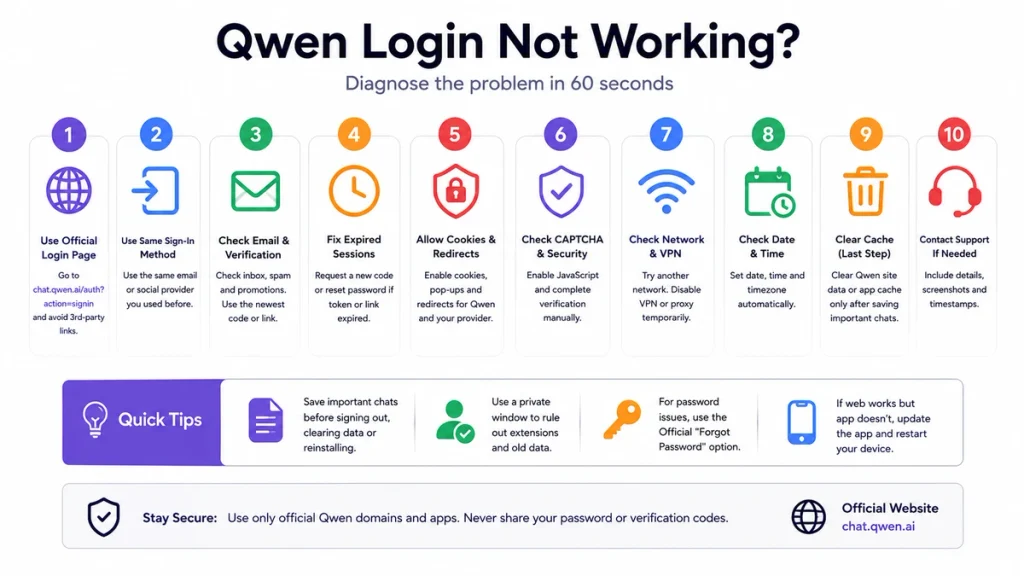
If login works in a private window, the account is probably valid and the original browser profile is the more likely source of the problem.
Identify Your Exact Qwen Sign-In Problem
| Symptom | Likely cause | Best first action |
|---|---|---|
| Incorrect email or password | Typing error, old saved password, or wrong account | Type credentials manually and use password recovery. |
| Verification email never arrives | Wrong address, spam filtering, delay, or account-delivery problem | Check the address and mailbox, then request one new message. |
| Verification code expired | An older code was used or too much time passed | Request a fresh code and use only the newest one. |
| Token expired in the app | Expired app session or interrupted social-login return | Test the web version, update the app, and clear cache. |
| Google login returns to Qwen but user remains signed out | Blocked cookie, redirect, wrong Google account, or stale session | Use a private window and allow the login redirect. |
| Qwen keeps returning to the login page | Cookie, session, clock, or extension problem | Hard-refresh and test a clean browser profile. |
| CAPTCHA does not appear | Script blocker, VPN, network filtering, or failed challenge state | Enable JavaScript and test another browser or network. |
| Account pending activation | Email verification is incomplete | Locate the activation email or contact support. |
| Web login works but app login fails | App token, version, cache, or OAuth-return problem | Update and restart the official app. |
| Login succeeds but chats are empty | Wrong account, different sign-in mapping, or history problem | Confirm the original method before signing out again. |
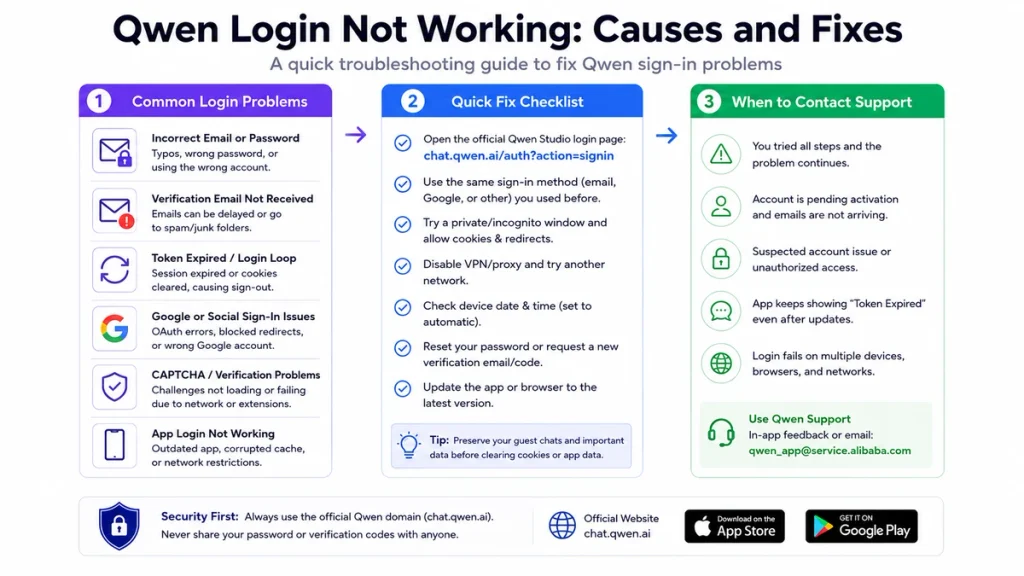
Use the Official Qwen Login Page
The official consumer login route is:
https://chat.qwen.ai/auth?action=signinBefore entering credentials:
- Confirm that the hostname ends with
qwen.ai. - Use HTTPS.
- Avoid links sent through unsolicited messages or advertisements.
- Do not enter credentials into a page hosted on a different domain merely because it uses a Qwen logo.
- Download mobile and desktop apps only through Qwen’s official download page or official app stores.
Third-party Qwen clients have their own accounts, subscriptions, privacy practices, and login systems. Fixes for those applications may not apply to Qwen Studio.
Use the Same Sign-In Method as Before
The most important account check is not only the visible email address. It is also the method used to create or access the account.
- If the account was created through Google, use the same Google identity.
- If the account was created with email and password, use the email-login form.
- If another social-login option appears in your current interface, use the same provider as before.
- Check work and personal Google accounts separately.
- Check whether an Apple or social-login privacy feature uses a relay email address.
Do not assume that entering the same Gmail address into an email form always reproduces the exact account mapping created by Google Sign-In. When important history is involved, use the original method first and avoid repeated account switching.
Fix Qwen Email and Password Login
- Confirm that the email address contains no leading or trailing spaces.
- Check the keyboard language and Caps Lock.
- Type the password manually instead of trusting autofill.
- Check whether the password manager stored credentials for an older Qwen domain or a third-party app.
- Use the password-recovery link on the official sign-in page.
- Use the newest reset link or code only.
- Return to the official login page and enter the new password manually.
If the interface says that the account does not exist, stop guessing passwords. Confirm whether the original account used a social-login provider instead of email-password authentication.
Reset a Forgotten Qwen Password
The current official Qwen sign-in page includes a password-recovery option.
- Open the official Qwen Studio sign-in page.
- Select the password-recovery option.
- Enter the email associated with the account.
- Check Inbox, Spam, Junk, Promotions, and corporate quarantine folders.
- Open only the newest reset message.
- Create a unique password that is not reused on another service.
- Return to
chat.qwen.aimanually after resetting.
If no reset message arrives, confirm that the account was not originally created through a social-login provider.
Verification Email or Code Not Arriving
A missing verification message can occur during account creation, activation, password recovery, or email-code login.
- Confirm the spelling of the email address.
- Wait several minutes before requesting another message.
- Search the mailbox for
Qwen. - Check Spam, Junk, Promotions, and Quarantine.
- Confirm that the mailbox is not full.
- Check whether a company or university mail gateway blocked the message.
- Request one new email and use only the newest code or link.
- Avoid pressing Resend repeatedly, because several valid-looking messages can arrive out of order.
- If the account remains pending, report the exact email domain and timestamp privately to Qwen support.
A public April 2026 account report documented a user remaining in pending activation because the verification email never arrived despite repeated requests. That report does not prove a current global outage, but it confirms that email-delivery failure is a possible account-level symptom.
Account Pending Activation
If Qwen states that the account is pending activation, completing authentication is not enough; the email-address verification step is still incomplete.
- Do not create several replacement accounts with small spelling differences.
- Do not repeatedly switch between email and social login.
- Preserve the account email and activation-screen screenshot.
- Record every resend attempt and its time.
- Contact Qwen if the activation email never arrives after reasonable waiting and mailbox checks.
Creating another account can make it harder to determine where conversations, subscriptions, or preferences belong.
Token Expired or Verification Code Expired
An expired code and an expired app token are different problems.
| Message | Meaning | Fix |
|---|---|---|
| Verification code expired | The email or SMS code is no longer valid | Request one fresh code and use it immediately. |
| Reset link expired | The password-reset URL exceeded its validity period | Begin password recovery again. |
| Token expired in app | The app’s saved session or OAuth token is no longer accepted | Force-close, update, and sign in again after testing the web version. |
| Token expired after Google selection | The OAuth return or app session failed | Use web login, then update or clear app cache. |
| Session expired in browser | The local Qwen session is no longer valid | Preserve guest content, then sign in through the official page. |
Do not reuse an older verification code after requesting a new one. The newest request can invalidate previous codes.
Fix Qwen Google or Social Login
- Use the official Qwen login page.
- Select the same social provider originally used.
- Choose the correct provider account.
- Allow pop-ups and redirects temporarily for the login flow.
- Allow required cookies for Qwen and the social provider.
- Test in a private browser window.
- Disable ad blockers, script blockers, and strict tracking protection temporarily.
- Disable VPN or proxy and retry on another network.
- Set device time automatically.
- If the app fails, complete the same login through a browser and update the app.
Do not remove Qwen from the social provider’s Connected Apps list as an early troubleshooting step when important account history is involved. Confirm the account mapping and preserve chat links first.
OAuth Redirect Returns to the Login Page
In a normal social-login flow, Qwen redirects the browser to the identity provider and then receives the user back through an authorization callback. A blocked or incomplete return can create a loop.
- Close duplicate Qwen login tabs.
- Begin from one fresh official login page.
- Allow redirects and pop-ups.
- Do not open the final callback in another browser profile.
- Do not switch provider accounts midway through the flow.
- Disable strict privacy extensions temporarily.
- Test another supported browser.
- Confirm the system clock.
If a corporate browser opens the identity provider but blocks the return to Qwen, test a personal network and browser after confirming that organizational policy permits it.
CAPTCHA or Human Verification Not Working
A verification challenge can fail to appear or remain stuck when scripts, cookies, browser fingerprinting, or required network requests are blocked.
- Enable JavaScript.
- Allow cookies for the login page.
- Disable ad-blocking and anti-tracking extensions temporarily.
- Disable VPN or proxy temporarily.
- Reload the page once.
- Try another browser or network.
- Wait before retrying after several failed challenges.
- Complete the challenge manually; do not use automation or bypass services.
Do not create a new account simply because one verification challenge failed. That can separate your future activity from the account containing your existing chats.
Qwen Login Loop or Repeated Sign-In
A login loop occurs when Qwen accepts the authentication step but immediately treats the browser or app as signed out again.
- Preserve guest and visible conversation content.
- Close duplicate Qwen tabs.
- Hard-refresh the login page.
- Test a private window.
- Disable extensions that modify cookies or page scripts.
- Set device date and time automatically.
- Check whether cookies are deleted automatically when the browser closes.
- Clear only Qwen-specific site data after preserving important content.
- Use the original sign-in method.
If the loop occurs across browsers, devices, and networks, save the time and account identifier and report it as a possible account-side authentication issue.
Qwen Login Works on Web but Not in the App
If the same account works at chat.qwen.ai, the account credentials and core Qwen service are probably available. Focus on the installed app.
- Confirm that the app is the official Qwen Studio application.
- Force-close it.
- Restart the device.
- Update Qwen Studio.
- Update the operating system.
- On Android, clear the app cache.
- Try another network without VPN.
- Reinstall only after confirming that important chats are visible on the web.
A community report documented an Android user receiving a Token Expired message while Google login still worked in the web version. That pattern points to an app-session or OAuth-return problem rather than an invalid Google account.
Use the dedicated Qwen app not opening or crashing guide if the application closes during login.
Qwen App Works but Web Login Fails
If the app remains signed in but the browser does not, avoid logging out of the working app until the browser issue is understood.
- Confirm the browser is using the correct official domain.
- Test a private window.
- Disable script and privacy extensions temporarily.
- Try another browser.
- Check cookies and automatic cookie deletion.
- Use another network.
- Do not sign out of the app merely to test whether you remember the login method.
Browser Cache, Cookies, and Extensions
| Test | What it isolates | Interpretation |
|---|---|---|
| Hard refresh | Stale page scripts | If it works, an older cached login page caused the problem. |
| Private window | Extensions and stored site state | If it works, investigate the normal browser profile. |
| Another browser | Browser-specific settings | If it works, update or repair the original browser. |
| Disable extensions | Script, cookie, or redirect blocking | Re-enable extensions one at a time. |
| Clear Qwen site data | Corrupted local session | Use only after preserving guest chats and account information. |
| Allow pop-ups and redirects | OAuth callback flow | Required when the social-login window cannot return to Qwen. |
Extensions most likely to interfere include ad blockers, script blockers, privacy extensions, cookie managers, automatic translation tools, antivirus browser extensions, and corporate security plugins.
When to Clear Qwen Site Data
Clear site data only after:
- Copying any guest conversation.
- Saving direct chat URLs.
- Confirming the original account and login method.
- Testing a private window.
- Testing another browser.
- Confirming that important history is visible on another device.
Clear data only for Qwen’s domains rather than deleting all browser cookies. After clearing, reopen the official sign-in page and use the original login method.
VPN, Proxy, Firewall, and Network Problems
Authentication requires Qwen, the identity provider, and the browser or app to exchange several requests. A blocked request can allow the login page to load but prevent completion.
- Switch to another trusted network.
- Disable VPN temporarily.
- Disable proxy or custom DNS filtering temporarily.
- Check whether a corporate firewall blocks Qwen or the social provider.
- Test the login page in a normal browser outside an embedded app window.
- Do not add security exceptions for unofficial Qwen applications.
A VPN is a diagnostic comparison, not a guaranteed fix. It can change your apparent region, increase latency, or trigger additional security verification.
Check Device Date and Time
OAuth tokens, verification links, security certificates, and session cookies depend on accurate time.
- Set date and time automatically.
- Set the time zone automatically when possible.
- Restart the browser or app after correcting the clock.
- Request a new verification code if the previous one was created while the clock was wrong.
Too Many Login Attempts
Repeated passwords, verification requests, CAPTCHA attempts, or OAuth callbacks can trigger temporary security or throttling controls.
- Stop submitting requests continuously.
- Wait before trying again.
- Use one browser and one account.
- Request one fresh code rather than several.
- Do not rotate through multiple IP addresses rapidly.
- Do not automate the login or CAPTCHA process.
If Qwen displays a specific waiting period, follow that message rather than repeatedly testing before it expires.
Account Does Not Exist or Wrong Account
An empty account or “account does not exist” error can result from using a different identity rather than an actual deletion.
- List every email address that may have been used.
- List the possible social-login providers.
- Check personal and work Google accounts.
- Check whether a privacy relay email was used.
- Search old Qwen notification or verification emails.
- Open a bookmarked conversation URL and observe which account it requests.
- Do not create another account until the original identities have been checked.
When contacting support, provide the possible account identifiers privately and explain which sign-in methods were tested.
Chats Missing After Login
A successful login followed by an empty sidebar is a history or account-mapping problem rather than a failed login.
- Do not sign out repeatedly.
- Confirm the exact account and sign-in method.
- Compare web and app history.
- Search browser history for direct Qwen conversation URLs.
- Check projects, folders, and archive.
- Preserve screenshots and account details.
A public Qwen report described chat history disappearing after a Google re-login even though the user believed the same account was used. This is a community report rather than a guaranteed current bug, but it supports preserving history and account identifiers before repeated authentication changes.
Continue with the dedicated Qwen missing chats guide.
Qwen Studio vs Qwen Code Authentication
Qwen Studio login and Qwen Code authentication are not the same troubleshooting target.
| Product | Authentication purpose | Current troubleshooting direction |
|---|---|---|
| Qwen Studio | Consumer web, mobile, and desktop account | Use the account and browser fixes in this article. |
| Qwen Code | Coding-agent provider authentication | Use /auth and configure an API key, Coding Plan, or supported provider. |
| Legacy Qwen Code OAuth | Previous free OAuth access | The official free tier was discontinued on April 15, 2026. |
| Headless Qwen Code | CI, SSH, or container authentication | Use API Key or Coding Plan rather than a browser-dependent login flow. |
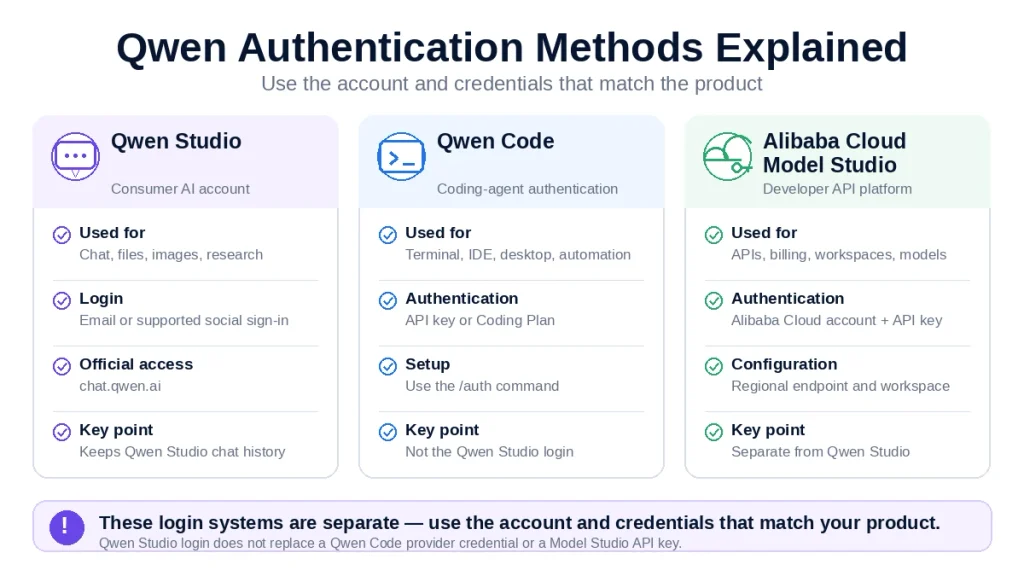
For CLI problems, use the separate Qwen Code authentication guide or Qwen Code troubleshooting guide.
Qwen Studio vs Alibaba Cloud Model Studio Login
A Qwen Studio consumer login does not replace an Alibaba Cloud Model Studio API key.
| Access type | Used for | Credential |
|---|---|---|
| Qwen Studio | Chat, files, images, research, and consumer features | Qwen account and supported sign-in method |
| Alibaba Cloud Model Studio | Developer APIs, billing, workspaces, and regional endpoints | Alibaba Cloud account and API key |
| Qwen Code with Model Studio | Coding-agent access to hosted models | Coding Plan or Model Studio API key |
| Third-party Qwen provider | Another company’s hosted Qwen endpoint | That provider’s account and API credential |
If your problem concerns an API key rather than the Qwen Studio sign-in page, use the dedicated Qwen API key guide.
Account Security and Phishing Protection
- Use only the official Qwen domain and official app listings.
- Never share your password or verification code.
- Do not send session cookies or OAuth tokens to support.
- Enable two-factor authentication on the social-login or email account when available.
- Use a unique password for email-based Qwen login.
- Review connected applications from the identity provider periodically.
- Do not approve a login you did not initiate.
- Do not install browser extensions promising to bypass Qwen authentication.
Qwen’s Terms of Service place responsibility on users to maintain the security and confidentiality of their accounts. Report suspected unauthorized access privately and change the underlying email or social-account password immediately.
What Not to Do
- Do not clear cookies before saving guest chats.
- Do not repeatedly request verification codes.
- Do not create multiple accounts while searching for the original account.
- Do not switch repeatedly between email and social login when important history is missing.
- Do not use unofficial Qwen login pages or APK files.
- Do not disable browser or device security permanently.
- Do not automate CAPTCHA or use bypass services.
- Do not post your account email, reset link, chat URL, or verification code publicly.
- Do not revoke social-login access before preserving account details and history.
- Do not assume that Qwen Code OAuth and Qwen Studio login are interchangeable.
How to Report a Qwen Login Problem
Use the Suggestions or feedback option on the official Qwen interface where available. For application-specific technical problems, official App Store developer responses publish [email protected]. Qwen’s policy pages publish [email protected] as an official contact.
Include:
- Date, time, and time zone.
- Web, Android, iPhone, Windows, or macOS.
- Browser and version.
- Qwen Studio app version.
- Sign-in method used.
- Account email or identifier, sent privately.
- The exact error message.
- Whether web login works.
- Whether another device or network works.
- Whether the account is pending activation.
- Whether the verification email arrived.
- Whether guest chats or existing history are at risk.
- A redacted screenshot or screen recording.
A useful reproduction report looks like this:
1. Open https://chat.qwen.ai/auth?action=signin
2. Select Continue with Google.
3. Choose the original Google account.
4. Google returns to Qwen.
5. Qwen displays the login page again.
6. The same account works in the Android app.
7. Tested in Chrome 151 and a private window at 18:25 UTC+3.
Never include your password, verification code, reset link, OAuth token, session cookie, or private conversation content.
Frequently Asked Questions
Why is Qwen login not working?
The cause may be a wrong account, different sign-in method, expired session, missing verification email, blocked social-login redirect, CAPTCHA problem, browser cookie issue, VPN, app token, or temporary Qwen authentication failure.
Why can’t I sign in to Qwen?
Open the official login page, verify the account and original sign-in method, test a private window, allow cookies and redirects, set the device clock automatically, and try another network.
How do I reset my Qwen password?
Use the password-recovery option on the official Qwen Studio sign-in page. Check spam and corporate quarantine, use the newest reset email, and return to the official domain manually afterward.
Why am I not receiving the Qwen verification email?
Check the address, Spam, Junk, Promotions, mailbox capacity, and corporate filtering. Wait before requesting another message, then use only the newest activation link or code.
What does Qwen account pending activation mean?
It means the email-verification stage has not been completed. Find the activation email, request one new message, and contact Qwen if it never arrives.
Why does Qwen say Token Expired?
The verification code, reset link, browser session, or app authentication token is no longer valid. Request a new code or session. In the app, update and clear cache after confirming that web login works.
Why does Qwen keep returning me to the login page?
The OAuth callback or session cookie may not be stored. Test a private window, allow cookies and redirects, disable extensions temporarily, and verify the device time.
Why is Google Sign-In not working with Qwen?
Check that you selected the original Google account, allow the redirect back to Qwen, disable strict tracking protection temporarily, and test another browser or network.
Why does Qwen login work on the web but not in the app?
This usually indicates an app-session, cache, version, OAuth-return, or device problem. Update the official app, restart the device, clear Android cache, and reinstall only after checking chat history on the web.
Will clearing Qwen cookies delete my chats?
Server-synchronized account chats may return after login, but guest conversations and unsynchronized local state may be lost. Preserve visible content and direct URLs before clearing site data.
Can I use a different sign-in method with the same email?
The interface may allow it, but do not assume it will always reproduce the same account mapping. Use the original sign-in method first when preserving chat history matters.
Why did my chats disappear after Qwen login?
You may have entered another account, changed sign-in method, or encountered a history-mapping problem. Stop repeated logouts, verify the original identity, and use the missing-history guide.
How do I fix Qwen CAPTCHA?
Enable JavaScript and cookies, disable blockers and VPN temporarily, reload once, and try another browser or network. Do not automate or bypass the challenge.
Is Qwen login down?
If login fails across multiple devices, browsers, accounts, and networks while other users report the same problem, a wider authentication issue is possible. If it works in a private window or another device, the problem is more likely local.
Is Qwen Studio login the same as Alibaba Cloud login?
No. Qwen Studio is the consumer assistant. Alibaba Cloud Model Studio uses its own developer account, workspace, billing, and API-key system.
Why does Qwen Code OAuth no longer work?
The official Qwen Code documentation says the previous Qwen OAuth free tier was discontinued on April 15, 2026. Use /auth and configure a current API-key, Coding Plan, or supported provider method.
How do I contact Qwen about a login problem?
Use the official Suggestions or feedback option. For app technical problems, Qwen developer responses publish [email protected]. Official policy pages publish [email protected].
Official Sources and Community Evidence
- Official Qwen Studio sign-in page
- Official Qwen Studio account-creation page
- Qwen Privacy Policy
- Qwen Terms of Service
- Official Qwen Studio download page
- Official Qwen Studio Google Play listing
- Official Qwen Studio App Store listing
- Official Qwen Code authentication documentation
- Official Qwen Code authentication troubleshooting
- Community report: Qwen verification email not received
- Community report: Google sign-in failure
- Community report: Android Token Expired during Google login
- Community report: history missing after re-login
Verification status: The official login route, sign-up route, password-recovery availability, policy contact, social-login statement, and account-security responsibility were checked against current Qwen pages. Qwen Code OAuth status was verified from current official documentation. Missing verification email, Google sign-in failure, Android Token Expired, and history loss after re-login are community-reported cases and are not presented as universal current bugs. Troubleshooting order, guest-session preservation, browser isolation, and account-mapping precautions are independent editorial recommendations.
Last verified: August 22, 2026.
[…] Use the independent Qwen download guide to locate the appropriate official product link. For access problems, see Qwen Login Not Working. […]