
If your Qwen history is not loading or some Qwen chats are missing, do not immediately assume that the conversations were deleted. The cause may be a blank sidebar, the wrong account, a guest session, a browser or app problem, mobile-to-web sync, an archived chat, a direct conversation link that is no longer listed, or an actual account-side history failure.
Quick answer: Before logging out, clearing site data, reinstalling the app, or signing in from a guest session, copy any visible content and save the conversation URL. Then confirm the account, test Qwen Studio on the web, perform a hard refresh, open a private browser window, compare another device, and search your browser history for a direct
chat.qwen.ai/c/...link. If one conversation remains missing across devices and its direct link does not open, preserve its title, URL, date, project, and error details and report the issue.
This guide focuses on conversation history in Qwen Studio, including its web and consumer-app interfaces. Qwen Code session transcripts and API conversation state are separate systems and require different troubleshooting.
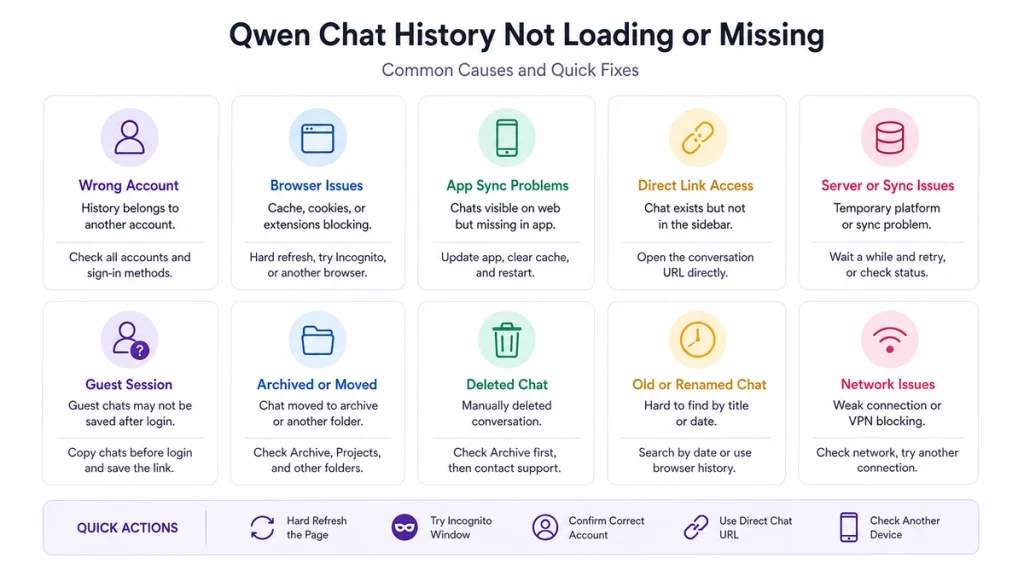
Independent verification note: Try-Qwen-AI.com is an independent resource. It does not operate Qwen Studio or control its account database. Community reports are used to identify possible failure patterns, not to claim that every reported bug still affects every user.
Preserve the Current Session Before Troubleshooting
History troubleshooting can become destructive if you begin by signing out, clearing all site data, switching accounts, or reinstalling the app. Preserve what is still accessible first.
- Do not close a tab containing an important open conversation.
- Duplicate the tab. Keep one copy unchanged while testing in the other.
- Copy the complete conversation URL. Save it in a text document or bookmark.
- Copy important text, code, and prompts.
- Save screenshots showing the title, project, error message, and missing section.
- Use Print to PDF or Save Page when the conversation is still visible.
- Record the approximate date, model, and number of messages.
This is especially important when the conversation began without a signed-in account. A publicly reported Qwen issue described guest-session history disappearing after the user signed in, without the guest thread migrating into the account.
60-Second Qwen History Diagnosis
- Check whether you are signed in. Record the visible account email or identifier.
- Confirm the sign-in method. Use the same Google, Apple, email, phone, or other account route originally used.
- Open Qwen Studio on the web. Compare it with the mobile or desktop app.
- Perform a hard refresh. Use
Ctrl + Shift + Ron Windows or Linux, orCmd + Shift + Ron macOS. - Test a private browser window. Sign in to the same account only after preserving guest-session content.
- Open another browser or device.
- Search browser history for
chat.qwen.ai. Open any direct conversation URL from the relevant date. - Check folders, projects, archives, and renamed titles where available.
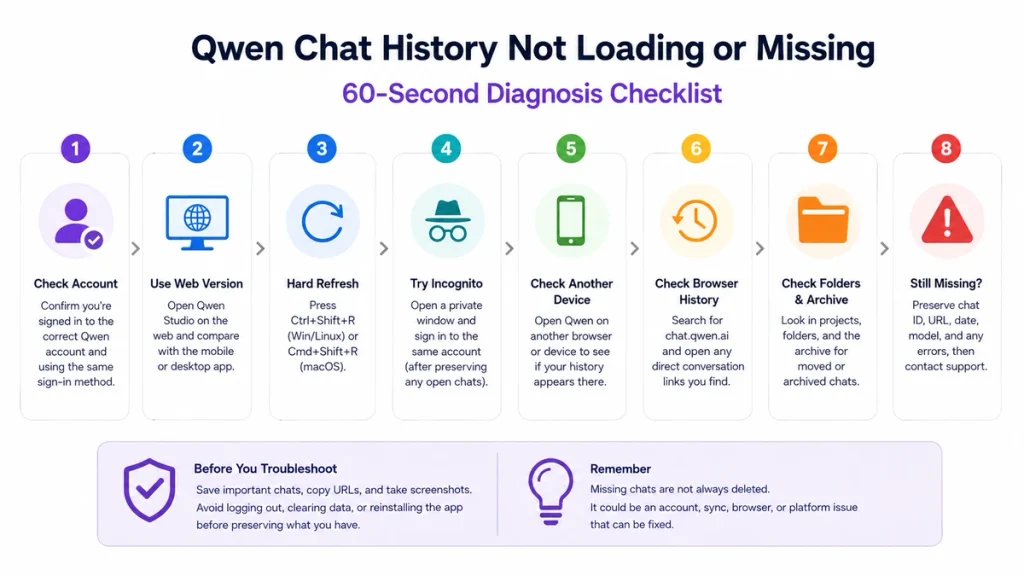
If the history appears on another device or through a direct conversation link, the data may still exist and the problem is likely related to listing, synchronization, or local browser state rather than complete deletion.
What Type of History Problem Do You Have?
| Symptom | Likely scope | Best first action |
|---|---|---|
| Sidebar is blank or keeps loading | Browser cache, extension, session, network, or temporary platform issue | Hard refresh, then test a private window. |
| All chats are missing | Wrong account, guest session, account sync, or wider history issue | Confirm the exact account and compare another device. |
| Only one chat is missing | Title, folder, archive, direct-link, deletion, or thread-specific failure | Search browser history and open the direct URL. |
| Title exists but messages are missing | Rendering or message-chain failure | Stop sending messages, save the URL, and test another device. |
| Chats appear on web but not mobile | App sync, app version, or platform-visibility difference | Use the web copy as the source of truth and update the app. |
| Chats disappeared after login | Guest session did not migrate or another account was opened | Return to the original tab or browser profile before clearing data. |
| Chat disappeared after an error | Thread-state or server-side message-chain problem | Preserve the chat URL, model, error, and timestamp. |
| Deleted chat is missing | Manual deletion | Check Archive first; otherwise contact support without assuming recovery. |
Is Qwen History Down or Is It Only Your Account?
A normal Qwen chat response does not prove that the history system is working. The chat model and the conversation-list service can fail independently.
A wider history problem is more likely when:
- The sidebar is blank on multiple devices.
- Several users report missing history at the same time.
- New chats also fail to appear after creation.
- The web app and official mobile app both show the same failure.
- Direct conversation URLs fail despite using the correct account.
- The problem began immediately after a visible Qwen server error.
A local or account-specific problem is more likely when:
- History loads in a private window.
- Another browser shows the chats.
- The web version works but the app does not.
- Only one account is affected.
- A direct chat URL opens even though the sidebar does not list it.
- Only one project, folder, or conversation is missing.
Do not rely on one third-party status monitor as proof that your account data is intact. The most useful tests are the same account on another platform and the direct URL of the missing conversation.
Confirm the Correct Qwen Account and Sign-In Method
Many “deleted” histories are actually attached to another account or sign-in identity.
- Open the current account profile and record the displayed email or identifier.
- Think back to the method used when the conversation was created.
- Check whether you previously used Google, Apple, email, phone, or another identity provider.
- Remember that an Apple private-relay address or a second Google account can create an apparently different account.
- Check work and personal browser profiles separately.
- Compare the account on the web app and mobile app.
Do not repeatedly create new accounts while searching for the original one. Record each account checked so that you do not confuse a new empty account with data loss.
Guest Chat History Missing After Login
Do not assume that a guest conversation will migrate into your account when you sign in.
A Qwen GitHub issue opened in September 2025 reported that a long guest conversation disappeared after login and was not transferred to the signed-in account. The issue was later closed without a published migration workflow.
If you are currently using Qwen without signing in:
- Copy the conversation before logging in.
- Save the page or print it to PDF.
- Copy the direct URL.
- Keep the original tab and browser profile open.
- Do not clear cookies or site data.
- Open a second browser profile to create or access the account if necessary.
If the guest chat has already disappeared after login, return to the original tab using the browser Back button or browser history. If the guest session state was replaced or cleared, a server-side account copy may never have been created.
Qwen Chats Visible on Web but Missing in the App
When the web version shows the conversations but the mobile app does not, treat the web history as evidence that the chats still exist.
A historical Android report described folders and multiple chats appearing correctly on the Qwen web interface while remaining invisible in the mobile app. That report does not prove a current universal limitation, but it demonstrates why cross-platform comparison should happen before declaring data loss.
- Open Qwen Studio on the web.
- Confirm that web and app use the same account.
- Update the official app through its store.
- Force-stop and reopen the app.
- Clear the app cache before clearing full app data.
- Check folders, projects, and archived sections on the web.
- Reinstall only after saving important content and verifying the account.
If a direct chat URL works in the mobile browser but not inside the app, the problem is likely app-specific visibility or routing.
Fix a Blank or Loading Qwen History Sidebar
A blank sidebar often indicates that the history list failed to render or load. Work through the following steps in order.
- Wait briefly to rule out a slow request.
- Hard-refresh the page.
- Open a private window and sign in to the same account.
- Disable ad blockers, privacy extensions, and script blockers temporarily.
- Try another updated browser.
- Try another device.
- Try another network.
- Clear Qwen-specific site data only after preserving open conversations.
If the list loads in Incognito or another browser, the server-side history probably still exists. Focus on the original browser profile, cached application state, storage limits, or extensions.
Hard Refresh, Incognito, and Browser Extension Tests
Hard refresh
A normal refresh can reuse stale scripts and cached application data. A hard refresh requests the current page resources again.
- Windows or Linux:
Ctrl + Shift + R - macOS:
Cmd + Shift + R
Private window
A private window is useful because it starts with a cleaner browser state and usually disables many extensions.
Warning: Do not use this test as the first step for an unsaved guest conversation. A private window will not contain the original guest-session state.
Extension isolation
Extensions that can interfere with history loading include:
- Ad blockers.
- Script blockers.
- Privacy and anti-tracking tools.
- Automatic translation extensions.
- AI conversation indexing or modification extensions.
- Corporate security extensions.
Disable extensions one at a time after confirming that the history loads in a clean browser context.
When to Clear Qwen Site Data
Clearing site data can resolve a corrupted local state, but it also signs you out and removes local browser information associated with the site.
Clear Qwen-specific data only after:
- Saving every open conversation you can still access.
- Copying direct conversation URLs.
- Confirming that the chats belong to a signed-in account.
- Testing a private window and another browser.
- Recording the account and sign-in method.
Clear only data for qwen.ai and chat.qwen.ai rather than deleting the entire browser history and all cookies.
Find a Missing Chat Using Its Direct URL
Qwen conversation links use unique chat identifiers. A typical web conversation URL follows a pattern similar to:
https://chat.qwen.ai/c/conversation-idIf you have the URL:
- Open it in the browser profile that originally used the chat.
- Confirm the signed-in account.
- Test it in another browser after signing in to the same account.
- If it opens, copy or export the conversation immediately.
- Rename and bookmark it so it remains easy to find.
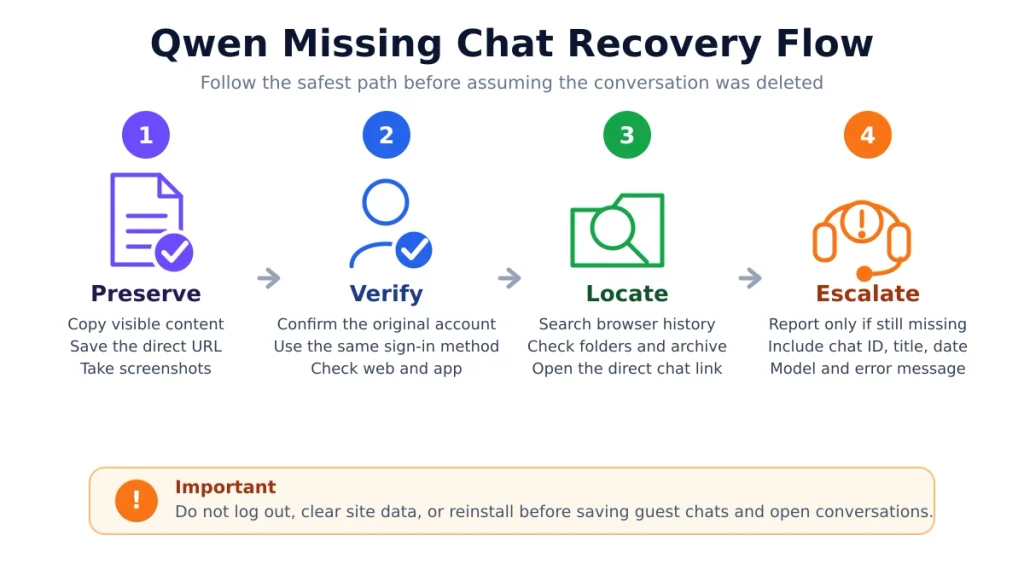
If the direct URL opens but the conversation is absent from the sidebar, the problem is likely related to listing or indexing rather than full deletion.
Use Browser History to Recover a Qwen Conversation
Browser history can contain the direct URL even when the Qwen sidebar does not show the title.
- Open browser history with
Ctrl + Hon Windows or Linux. - On macOS, use the browser’s History menu or its platform shortcut.
- Search for
chat.qwen.ai. - Filter mentally by the approximate date of the missing conversation.
- Open likely conversation links in new tabs.
- Use
Ctrl + ForCmd + Finside an opened conversation to search for a remembered phrase.
Browser history cannot restore a server-deleted conversation, but it can recover the unique link to a chat that still exists but no longer appears in the list.
Search Folders, Projects, Archive, and Old Titles
Depending on the current Qwen interface and platform, a conversation may be located inside a project, folder, archive, or another organizational view.
- Check the main recent-conversation list.
- Open every relevant project or folder.
- Check Archive where available.
- Look for a renamed or auto-generated title.
- Search by approximate date instead of only keywords.
- Remember that the visible title may describe the opening message rather than the later topic you remember.
- Compare web and mobile organizational views.
A conversation about an important contract may still have a vague title such as “Can you help me with this document?” if that was the opening message.
One Qwen Conversation Is Missing
If all other chats remain visible, the problem is less likely to be a total account outage.
- Search every project, folder, and archive.
- Search browser history for the approximate creation and last-used dates.
- Check bookmarks and open tabs on other devices.
- Ask whether the chat was renamed, moved, archived, or deleted.
- Open the direct URL if available.
- Compare the same account on web and mobile.
- Record the exact title or distinctive phrases before contacting support.
A public Qwen issue from June 2025 described one saved conversation disappearing while the user’s other chats remained available. The report was closed without a public restoration procedure, so the safest response is to preserve identifiers and report the loss promptly rather than assuming the content will reappear automatically.
Chat Opens but Earlier Messages Are Missing
This is a more serious symptom than a missing sidebar entry. The thread exists, but part of its message chain is not visible.
A July 2026 community report described a long Qwen Studio conversation that restarted after a model error and displayed only the user’s resent message and the latest response.
If this happens:
- Stop sending new messages temporarily.
- Do not repeatedly edit, archive, unarchive, or regenerate the thread.
- Copy the direct URL and chat ID.
- Take screenshots of the visible title and remaining messages.
- Record the error shown immediately before the history disappeared.
- Open the chat on another device and browser.
- Wait briefly and reload only after preserving evidence.
- Report the issue with the model, timestamp, and approximate missing-message count.
Do not publicly post confidential text merely to prove that it existed. Provide unique phrases only through a private support channel when necessary.
All Qwen Chats Are Missing
When the entire history is empty, work through account and platform checks before treating it as permanent data loss.
- Confirm that you are signed in rather than using a new guest session.
- Confirm the account email and sign-in method.
- Check all browser profiles and mobile accounts.
- Test Qwen Studio on the web.
- Hard-refresh and test a private window.
- Open a known direct conversation URL.
- Create one harmless test chat and see whether it appears in history.
- Wait and retry if multiple platform-side symptoms appear.
- Report the account-wide issue with screenshots and timestamps.
If a new test conversation appears but older chats do not, the history list is writing new data but failing to expose the previous archive. This is useful evidence for support.
Archived vs Deleted Qwen Chats
Archiving and deleting are not equivalent.
| Action | Expected purpose | Recovery approach |
|---|---|---|
| Archive | Hide the conversation from the main list without intentionally destroying it | Open Archive or the relevant project and unarchive it where available. |
| Move to project or folder | Organize the conversation in another view | Open the destination project or folder. |
| Rename | Change the visible title | Search by date or direct URL rather than the old title. |
| Delete | Remove the conversation | Do not assume a visible Undo or restoration path exists; report accidental deletion immediately. |
| Account deletion | Request deletion of account-associated data | This is a privacy and account process, not normal chat recovery. |
The sources reviewed did not provide a public consumer guarantee that a manually deleted Qwen Studio conversation can be restored. Treat deletion as potentially irreversible and keep independent backups of important work.
Mobile App Fixes
- Confirm the same account on the web and app.
- Update Qwen Studio from the official app store.
- Force-stop and reopen the app.
- Restart the device.
- Clear the app cache.
- Disable battery restrictions that prevent background synchronization.
- Test a different network.
- Use the web version to verify whether the chats still exist.
- Clear app storage or reinstall only after preserving important content and sign-in details.
The official Qwen Studio Android listing identifies Alibaba Cloud as the developer and provides the current official app source. Avoid troubleshooting through an unrelated app using Qwen in its name.
Network, Clock, VPN, and Session Checks
History loading can fail even when the model can answer a new message.
- Test another trusted network.
- Disable a VPN temporarily and compare.
- Check whether a corporate firewall blocks Qwen assets or API calls.
- Set the device date and time to automatic.
- Check whether the login session expired in another tab.
- Close duplicate Qwen tabs only after saving important content.
- Check whether switching accounts in another tab changed the active session.
A VPN may fix one routing issue but create another by changing location, latency, or account-security signals. Use it as a comparison test, not a guaranteed solution.
What Not to Do
- Do not clear browser data before copying guest chats.
- Do not log in from a guest session before saving important content.
- Do not repeatedly archive, unarchive, edit, or resend messages in a damaged thread.
- Do not create several new accounts while trying to find the original account.
- Do not reinstall the app before testing the web version.
- Do not publish your email address, chat ID, direct URL, or private messages in a public bug report.
- Do not assume a missing sidebar entry means permanent deletion.
- Do not assume that support can restore a deleted conversation from backups.
- Do not store the only copy of important legal, business, academic, or coding work inside one AI conversation.
Can Qwen Restore a Missing Conversation?
The answer depends on what happened:
| Situation | Recovery likelihood | Recommended action |
|---|---|---|
| Sidebar failed but direct URL opens | High | Export the conversation and report the listing issue. |
| Web shows chat but mobile does not | High | Use the web copy and troubleshoot the app. |
| Wrong account | High after finding the original account | Use the original sign-in method. |
| Chat archived or moved | High | Find and unarchive or move it back. |
| Guest chat still open in original tab | Possible | Copy or export it before changing the session. |
| Guest chat vanished after login | Uncertain | Return to the original browser session and report it if unavailable. |
| One thread lost after a server error | Uncertain | Preserve the chat ID, URL, model, error, and time for support. |
| Manually deleted chat | Unknown and potentially irreversible | Contact support immediately but do not rely on restoration. |
Qwen does not publish a consumer-facing guarantee that support can restore every missing or deleted chat. The faster you preserve identifiers and report the issue, the better the investigation evidence will be.
How to Report a Missing Chat
Use Qwen’s available in-product feedback or support route. The official Android app listing also publishes [email protected] under App Support; account and data-related requests should be sent privately rather than posted in a public issue.
Include:
- Date, time, and time zone.
- Account email or identifier, sent privately.
- Sign-in method used.
- Web, Android, iOS, macOS, or Windows.
- Browser and app version.
- Chat title.
- Project, folder, or archive location.
- Direct conversation URL and chat ID.
- Approximate creation date and last-used date.
- Approximate number of missing messages.
- Model used.
- Exact error shown immediately before the loss.
- Whether another device or direct URL works.
- Screenshots with sensitive content hidden.
Qwen’s privacy policy states that User Content can include prompts and uploaded material. Do not copy private legal documents, passwords, personal records, or confidential business information into a public GitHub issue or community post.
Back Up Important Qwen Conversations
An AI conversation is useful working history, but it should not be the only archive for critical work.
- Rename important conversations with a distinctive title.
- Bookmark the direct conversation URL.
- Copy final outputs into Word, Google Docs, Markdown, or your project system.
- Save code in a repository rather than only in chat.
- Save important prompts separately.
- Print long conversations to PDF periodically.
- Keep original uploaded files outside Qwen.
- Use any official account export option available in your current region and interface.
- Review the privacy policy before using third-party history-indexing extensions.
For legal, financial, academic, software, and business projects, maintain a short external project log recording the chat title, URL, date, model, and final output location.
Qwen Studio History vs Qwen Code Sessions
| History type | Where it belongs | How to troubleshoot |
|---|---|---|
| Qwen Studio chat history | Consumer web or application account | Account, sidebar, app sync, browser, direct URL, archive, and support checks in this guide. |
| Qwen Code sessions | Qwen Code CLI, Desktop, Web Shell, or configured workspace | Use Qwen Code session and troubleshooting documentation. |
| API conversation state | Your application or provider request history | The API does not automatically recreate a consumer Qwen Studio sidebar. |
| Local Qwen chat history | Ollama, LM Studio, Open WebUI, or another local application | Check that application’s database, files, backups, and session storage. |
A Qwen model name does not determine where conversation history is stored. The application or provider that hosts the chat controls the history system.
Frequently Asked Questions
Why is my Qwen history not loading?
The most common possibilities are a stale browser state, an extension conflict, the wrong account, an expired session, a mobile-sync problem, a network issue, or a temporary Qwen history-service failure. Hard-refresh the page, confirm the account, and test a private window and another device.
Why are my Qwen chats missing?
The chats may belong to another account, exist only in a guest session, be inside a project or archive, appear only on the web, or remain accessible through their direct URLs even though the sidebar does not list them.
Did Qwen delete my conversations?
Missing conversations do not prove deletion. Test the correct account, another platform, browser history, and the direct conversation URL. Actual deletion or server-side loss becomes more likely only when the chat cannot be found across accounts, devices, folders, archives, or direct links.
Can I recover a deleted Qwen chat?
The sources reviewed do not provide a guaranteed consumer restoration process for manually deleted chats. Check Archive first, then contact Qwen support promptly with the chat identifiers. Treat deletion as potentially irreversible.
Are Qwen guest chats saved?
Do not rely on a guest chat becoming part of a future account. A public Qwen issue reported guest history disappearing after login. Copy or export important guest conversations before signing in or clearing browser data.
Why did my Qwen chats disappear after login?
You may have moved from a guest session to a new account, opened a different account, or used a different sign-in identity. Return to the original browser tab or profile and verify the account before clearing any data.
Why do my chats appear on Qwen web but not the app?
This usually points to app synchronization, app version, platform visibility, or account mismatch rather than deletion. Preserve the web copy, update the app, confirm the account, and clear only the app cache before taking more destructive steps.
Why is only one Qwen conversation missing?
The chat may have been renamed, archived, moved into a project, deleted, omitted from the list, or affected by a thread-specific error. Search browser history for its direct URL and compare another device.
Why does a Qwen chat show only the last message?
The thread may have experienced a rendering or message-chain failure. Stop adding messages, preserve the URL and error details, test another device, and report the issue with the approximate missing-message count.
Can browser history recover a Qwen chat?
Browser history can recover the direct URL of a conversation that still exists but is not visible in the sidebar. It cannot recreate content that has been deleted from the server.
Is it safe to clear Qwen site data?
Only after saving visible chats, copying direct URLs, and confirming that the history belongs to a signed-in account. Clearing site data can destroy the local state of an unsaved guest session.
How long does Qwen keep chat history?
I did not find a fixed public retention period or guaranteed archive duration for every active Qwen Studio conversation in the official sources reviewed. Keep independent copies of important work rather than relying on indefinite sidebar availability.
How do I report a missing Qwen chat?
Send the account identifier privately along with the chat title, direct URL, chat ID, project, timestamps, model, error message, browser or app version, and whether the chat appears on another device. Do not publish private prompts or personal data in a public issue.
Is Qwen Code session history the same as Qwen Studio history?
No. Qwen Code sessions belong to the Qwen Code application and its workspace or local session system. This article covers the consumer Qwen Studio conversation list.
Official Sources and Community Evidence
- Official Qwen Studio web application
- Official Qwen Studio overview
- Qwen Privacy Policy
- Qwen Terms of Service
- Official Qwen Studio Android listing and app support details
- Community report: guest history lost after login
- Community report: chats visible on web but missing on Android
- Community report: one saved Qwen conversation missing
- Community report: earlier messages missing after a server error
Verification status: Qwen Studio’s current web access, official application listing, privacy-policy contact, and public account interface were checked against official Qwen and app-store sources. Guest-session loss, mobile visibility differences, missing single chats, and message-chain loss are community-reported cases and are labeled as such. Browser recovery, session preservation, backup, and diagnostic ordering are independent editorial recommendations.
Last verified: August 22, 2026.