
If Qwen file upload is not working, first identify whether the failure occurs in Qwen Studio, an installed Qwen app, the Alibaba Cloud Model Studio Files API, a multimodal model call, or a third-party integration. Each route has different supported formats, limits, processing states, and error messages.
Quick answer: Rename the file using a short filename without emojis or unusual symbols, confirm that it opens normally, and test one small TXT, PDF, DOCX, XLSX, or CSV file in a new Qwen conversation. If you use the API, verify that the file status is
processed, that you selectedpurpose="file-extract", and that the model explicitly supportsfile-id. Uploading a file does not make every Qwen chat model capable of reading it.
Qwen Studio’s public product overview confirms document processing for structured and unstructured data, including examples such as CSV, Excel, and text documents. However, the consumer interface and the Model Studio API should not be treated as though they share one universal upload limit.
Independent verification note: Try-Qwen-AI.com is an independent resource. It does not operate Qwen Studio, Alibaba Cloud Model Studio, or third-party Qwen integrations. File availability, supported formats, and limits can vary by product, model, account, region, and API route.
Identify Where the Upload Is Failing
| Environment | What happens there | Common causes |
|---|---|---|
| Qwen Studio | A user attaches a document, spreadsheet, image, or other supported asset inside a conversation. | Conversation state, browser, application version, unsupported file, filename, account rollout, network, or service issue. |
| OpenAI-compatible Files API | A developer uploads a file with purpose="file-extract" and receives a file-id. | Wrong API key, format, size, storage quota, upload QPS, region, or processing status. |
| Qwen-Long or Qwen-Doc-Turbo | A supported model reads a previously uploaded file by receiving fileid://... in a system message. | Unsupported model, wrong file ID, parsing incomplete, account mismatch, or wrong message structure. |
| Visual or multimodal model | An image or video is passed by URL, Base64, local path, or temporary OSS URL. | File too large, URL inaccessible, wrong model, expired URL, unsupported media, or account/model mismatch. |
| Third-party integration | A separate application uploads the file and must pass its content or URL to Qwen. | The integration sends only metadata or the filename rather than the actual content. |
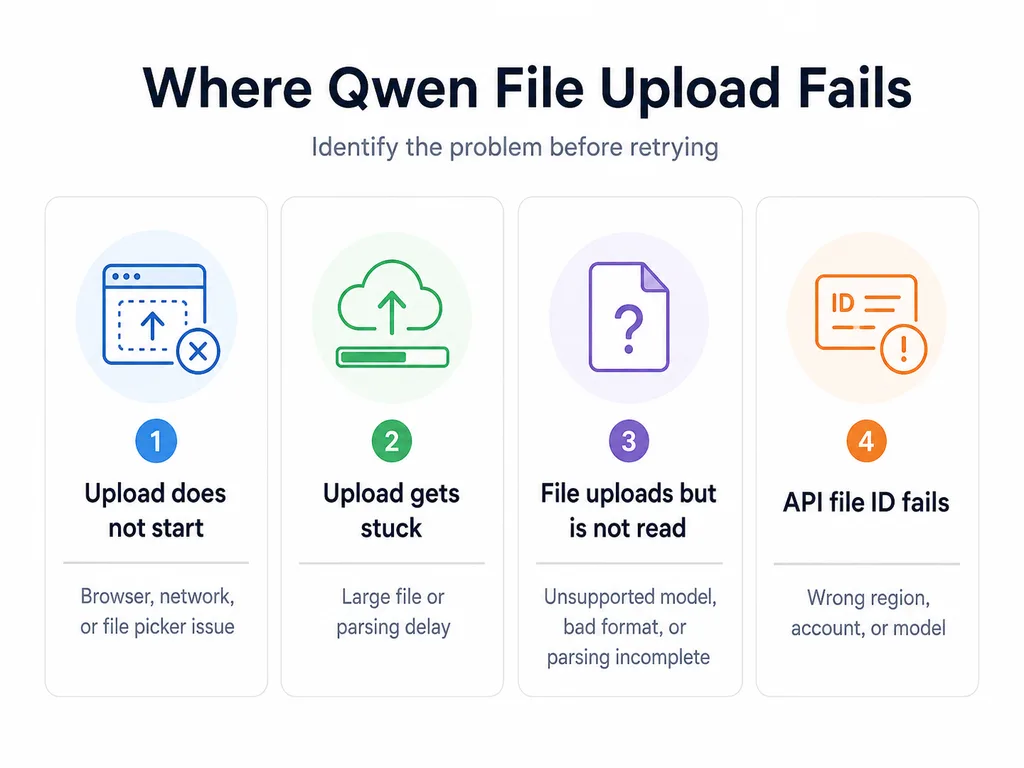
Always record the product and provider before troubleshooting. A LibreChat, workflow platform, or custom chatbot can display an attachment while failing to pass its bytes or extracted content to the Qwen model.
60-Second Qwen File Upload Diagnosis
- Save the original file and prompt. Do not depend on the stuck conversation as the only copy.
- Open the file locally. Confirm that it is not corrupted, empty, encrypted, or password-protected.
- Rename it. Use a short name such as
report-2026.pdfwithout emojis, trailing spaces, or unusual symbols. - Start a new Qwen conversation. Upload only that file.
- Use a direct prompt. For example:
Read this file and return its title and the first three key points. - Test a small plain-text file. If TXT works but the original file does not, focus on its format, size, protection, or contents.
- Try a private browser window or another device.
- API users: record the status code, error code, request ID, file ID, purpose, region, and current file status.
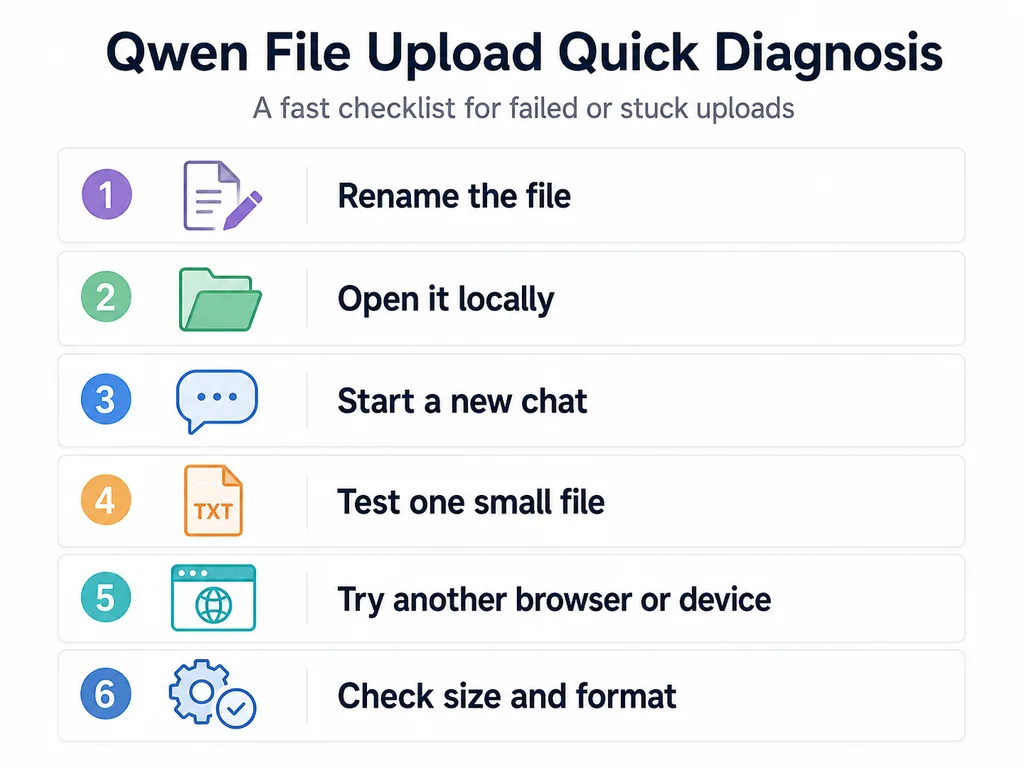
If a small TXT file works in a new conversation, Qwen file upload is available for your account and product route. The original file or conversation is the more likely cause.
Is Qwen File Upload Down?
One failed attachment does not prove that Qwen’s entire file service is down. File upload can fail independently from normal text chat, and Qwen Studio can behave differently from Model Studio APIs.
A wider upload problem is more likely when:
- Several small supported files fail in new conversations.
- The same account fails on multiple devices and networks.
- Other users report the same upload symptom at the same time.
- Model Studio returns repeated server-side
500or503responses for valid files. - An official Alibaba Cloud health channel reports a relevant service incident.
A file-specific or local problem is more likely when:
- A different file uploads successfully.
- The file works after being renamed or re-exported.
- A private browser window works.
- The problem occurs only in one conversation.
- The API returns a client-side
400error describing format, size, or parameters. - A third-party application sees only the file metadata.
Qwen Studio Upload Fixes
Start a new conversation
A conversation can retain failed attachments, long history, tool state, or an incompatible selected mode. Start a clean conversation and attach one file before copying the full task.
Use a minimal prompt:
Read the attached file.

Return:
1. The filename
2. The document title
3. Three facts found inside the file

Do not answer from general knowledge.
This prompt helps reveal whether Qwen can access the file content or only sees its name.
Upload one file at a time
Multiple files make it harder to identify the failing attachment. Test one small file, then add the remaining files gradually.
Use a common format
Qwen Studio publicly describes document workflows involving formats such as CSV, Excel, and text documents. For troubleshooting, prefer a common, unprotected format such as:
- TXT
- DOCX
- XLSX
- CSV
- PNG or JPG for a visual test
Do not assume that every file type supported by a particular Model Studio API is also supported by every version of the Qwen Studio interface.
File Upload Button Missing or Not Responding
The attachment button may be unavailable because of:
- The selected conversation or model mode.
- A difference between web, iOS, Android, or desktop interfaces.
- An outdated installed application.
- A staged feature rollout or account restriction.
- A browser extension blocking the file picker.
- Browser permission or site-state problems.
- Reload Qwen once.
- Start a new standard chat.
- Open Qwen in a private browser window.
- Temporarily disable script-blocking extensions.
- Try another browser or the current official app.
- Check whether the same account exposes attachments on another device.
Use the dedicated Qwen download guide to distinguish official applications from unrelated third-party apps.
Upload Stuck at 0% or 100%
Stuck at the beginning
If the upload never begins, possible causes include:
- Browser extension or security software blocking the request.
- Corporate proxy, firewall, or TLS inspection.
- A network interruption.
- A very large file.
- A filename containing problematic symbols.
- An expired login session.
Test a small TXT file through another network. If it works, investigate the original network, browser profile, or file.
Stuck after the upload reaches completion
Reaching 100% may mean the bytes were uploaded but the document is still being parsed. Parsing can take longer for:
- Large PDFs.
- Scanned documents.
- Files containing many images.
- Complex spreadsheets.
- Presentation files with embedded media.
Wait before uploading the same file again. Duplicate submissions can create extra processing work or trigger upload limits.
File Uploaded but Qwen Cannot Read It
This symptom is different from an upload failure. The interface may display the attachment while the model receives only its name, a placeholder, or incomplete extracted text.
- Ask Qwen to quote the first sentence from the file.
- Rename the file using basic Latin letters, numbers, hyphens, and one extension.
- Re-export the file into PDF, DOCX, TXT, CSV, or XLSX.
- Remove password protection and encryption.
- Start a new conversation and upload it again.
- Compare the result with a plain-text copy of the same content.
A public Qwen Chat issue reported that TXT files with emoji characters in the filename could be treated as though only the filename were available. The issue does not establish that every Unicode filename fails, but a simple ASCII filename is a useful diagnostic step.
Rename the File and Remove Problem Characters
Use filenames such as:
sales-report-2026.xlsx
contract-draft.pdf
meeting-notes.txt
Avoid diagnostic filenames containing:
- Emoji characters.
- Control characters.
- Trailing periods or spaces.
- Multiple misleading extensions, such as
document.pdf.exe. - Very long paths or filenames.
- Characters that your operating system or upload library escapes inconsistently.
Renaming is a troubleshooting step, not proof that all non-Latin filenames are unsupported.
Unsupported, Corrupted, or Protected Files
Alibaba Cloud error guidance states that a file may be rejected when its format is unsupported, it cannot be opened, or the extension does not match the actual content.
- Open the file with its normal desktop application.
- Use Save As or Export to create a fresh copy.
- Remove passwords, encryption, and restricted-editing protection.
- Confirm the extension matches the actual format.
- Scan the file for malware before uploading.
- Remove unsupported embedded objects or macros when possible.
Changing the extension from .doc to .pdf without converting the file does not change its internal format.
Qwen PDF Upload Problems
Text PDF vs scanned PDF
A text PDF contains selectable text. A scanned PDF consists mainly of page images and requires visual parsing or OCR. Scanned PDFs can take longer and may produce weaker results when the pages are blurred, rotated, or low resolution.
- Test whether text can be selected in the PDF.
- Run OCR before upload when the scan is poor.
- Split a very large PDF into logical sections.
- Remove blank pages and oversized embedded images.
- Re-export malformed PDFs using a trusted PDF tool.
Password-protected PDFs
If the document requires a password to open, Qwen’s parser cannot rely on your local application’s unlocked session. Create a permitted unprotected copy before uploading.
Qwen OCR API is a separate route
The current Qwen3.5 OCR documentation supports passing PDFs directly through the Responses API, not the Chat API. Its documented PDF limit is up to 50 pages and 100 MB.
Do not send an OCR PDF request to an unsupported Chat Completions endpoint and interpret the resulting error as a general Qwen upload outage.
Use the dedicated Qwen files and PDF guide for document-analysis workflows.
Excel, CSV, Word, and PowerPoint Problems
Excel and CSV
- Remove corrupted external links.
- Save macro-enabled files as XLSX for a diagnostic test.
- Use UTF-8 encoding for CSV files.
- Confirm the CSV delimiter and quoting are consistent.
- Remove thousands of empty rows and columns.
- Split workbooks containing many large sheets.
Word documents
- Save legacy DOC files as DOCX when the selected route does not support DOC.
- Accept or remove tracked changes if they confuse extraction.
- Remove broken embedded objects.
- Export to PDF or TXT to isolate a DOCX parsing problem.
PowerPoint files
PowerPoint support is route-specific. Qwen-Doc-Turbo currently documents PPT and PPTX, while the Qwen-Long format list does not include them. Do not combine all Qwen file-format lists into one universal claim.
When PPTX parsing fails, export the presentation to PDF and test again.
Image and Video Upload Problems
Images and videos use multimodal input rules rather than generic document extraction limits.
Current Model Studio error documentation states:
- A Base64-encoded local image or video item must not exceed 10 MB after encoding.
- An image passed by URL must not exceed 10 MB.
- Video URL limits vary by model family.
- The server must be able to access any public media URL.
A file that uploads through a generic file-storage endpoint may still exceed the selected vision model’s own input limit.
Browser, App, and Network Checks
| Test | What it isolates | Interpretation |
|---|---|---|
| Private browser window | Extensions and stored browser state | If upload works, inspect extensions or site data. |
| Another browser | Browser-specific file picker or request issue | Update or reset the original browser profile. |
| Another device | Device or application issue | If it works, Qwen upload is available for the account. |
| Mobile hotspot | Firewall, proxy, VPN, DNS, or ISP route | If it works, investigate the original network. |
| Small TXT file | Basic upload path | If it works, focus on the original file. |
| New conversation | Conversation state | If it works, the old session is likely affected. |
A VPN is not a universal upload fix. It may bypass one network problem, but it can add latency, change your apparent region, or trigger account-security controls.
Common Symptoms and Their Likely Causes
| Symptom | Likely cause | Best first action |
|---|---|---|
| Attachment button is missing | Mode, platform, rollout, account, or application version | Start a new chat and compare web with the current app. |
| File picker does nothing | Browser extension or permission problem | Test a private browser window. |
| Upload remains at 0% | Network, security software, or file-size issue | Try a small TXT file on another network. |
| Upload reaches 100% but never finishes | Parsing is still running | Wait and avoid duplicate uploads. |
| Qwen sees only the filename | Parsing, filename, conversation, or third-party integration problem | Rename the file and test a new conversation. |
| PDF cannot be read | Encryption, corruption, scanned pages, or unsupported route | Re-export an unprotected copy and test text extraction. |
| Upload file number exceed limit | Files API storage count or capacity is full | List and delete unnecessary files. |
| File parsing in progress | The upload completed but parsing did not | Poll the file status or retry the model call after a delay. |
| File ID works in one account only | File IDs are account-bound | Upload the file using the account that will call the model. |
| Public URL cannot be downloaded | Private, expired, blocked, or cross-region URL | Use a stable public URL or supported direct upload method. |
Qwen API File Upload Is Not Universal
The ability to attach a document in Qwen Studio does not mean that every Qwen API model accepts an uploaded file object.
The current OpenAI-compatible Files API documents file IDs for:
- Qwen-Long: long-document question answering.
- Qwen-Doc-Turbo: extraction, classification, summarization, and document Q&A.
- Batch processing: JSONL batch input.
Do not upload a file and then send its ID to qwen3.8-max, qwen3.7-plus, or another general model unless the documentation for that exact model and API explicitly supports that file mechanism.
For unsupported models, your application must use a documented URL or multimodal input method, extract the content itself, or call a document-specific model.
Choose the Correct Qwen File Path
| Goal | Recommended path | Important note |
|---|---|---|
| Analyze a document through a reusable file ID | OpenAI-compatible Files API with purpose="file-extract", then Qwen-Long or Qwen-Doc-Turbo | The current model documentation applies to the China (Beijing) region. |
| Extract structured information from one document | Qwen-Doc-Turbo with file-id or public doc_url | A file-ID request references one file. |
| Query several very long documents | Qwen-Long with several fileid:// references | Current documentation allows up to 100 file IDs and 10 million total context tokens. |
| Analyze an image or video | Qwen-VL-compatible multimodal message using URL, Base64, local path, or supported temporary URL | Use the selected model’s media limits. |
| Parse a PDF with Qwen OCR | Qwen3.5 OCR Responses API | The documented PDF path uses Responses API, not Chat API. |
| Run a batch job | Files API with purpose="batch" and valid JSONL | Do not use file-extract for a batch input file. |
OpenAI-Compatible Files API
The OpenAI-compatible Files API supports upload, retrieve, list, and delete operations.
For document analysis, upload using:
purpose="file-extract"A successful response includes:
- A
file-id. - The filename.
- The file size.
- A processing status.
Do not use the file with the model until:
"status": "processed"When the file is ready, pass it in a system message:
{
  "role": "system",
  "content": "fileid://file-fe-xxx"
}
Qwen-Long and Qwen-Doc-Turbo
| Feature | Qwen-Long | Qwen-Doc-Turbo |
|---|---|---|
| Primary purpose | Question answering across very long documents | Extraction, classification, summarization, moderation, and document Q&A |
| Current documented region | China (Beijing) | China (Beijing) |
| File IDs per request | Up to 100 | One |
| Total document context | Up to 10 million tokens | Approximately 262,144 input tokens through file ID or URL |
| File storage | Uploaded file IDs can be reused | Uploaded file IDs can be reused |
| Parsing behavior | File must finish parsing before use | Can parse text only or text and images; visual parsing takes longer |
A model call that returns:
File parsing in progress, please try again later.does not mean the original upload failed. Wait and retry the model call or query the file status.
Direct PDF OCR through the Responses API
The current Qwen3.5 OCR documentation supports direct PDF input through the Responses API.
- Maximum PDF size: 100 MB.
- Maximum PDF length: 50 pages.
- The documented direct PDF route does not support Chat API.
This is a specialized OCR route. Its limits should not be applied to Qwen Studio or Files API generally.
Temporary URLs and Multimodal Uploads
Model Studio provides a temporary upload mechanism for multimodal models that require URLs.
The current temporary storage documentation specifies:
- The feature is currently documented for the China (Beijing) region.
- The upload must specify the model that will consume the file.
- The same model must be used in the subsequent request.
- The upload and model API keys must belong to the same account.
- The temporary
oss://URL expires after 48 hours. - The service-level file maximum is 1 GB, but the selected model can impose a lower limit.
- The temporary service is intended for development and testing rather than production scale.
For HTTP calls, the request that consumes the temporary URL must enable OSS resource resolution as documented. Skipping that step can cause file-resolution errors.
Qwen File Formats and Limits by Route
| Route | Supported examples | Current documented limit |
|---|---|---|
OpenAI Files API, file-extract | TXT, DOCX, PDF, XLSX, EPUB, MOBI, MD, CSV, JSON, BMP, PNG, JPG/JPEG, GIF, and scanned PDFs | Documents up to 150 MB; error documentation specifies images up to 20 MB |
| Qwen-Long | TXT, DOCX, PDF, XLSX, EPUB, MOBI, MD, CSV, JSON, BMP, PNG, JPG/JPEG, GIF | 150 MB for non-image files; 20 MB for images |
| Qwen-Doc-Turbo | TXT, DOC, DOCX, PDF, XLS, XLSX, MD, PPT, PPTX, JPG, JPEG, PNG, GIF, BMP | 150 MB per uploaded file |
Files API, batch | Valid JSONL batch input | 500 MB |
| Native platform upload service | Purpose-dependent files for fine-tuning, extraction, or batch work | Service-level maximum 1 GB per file, 5 GB active storage, and 100 active files |
| Multimodal Base64 input | Model-supported image or video | Single encoded item must not exceed 10 MB |
| Multimodal image URL | Supported image URL | Image must not exceed 10 MB |
| Qwen3.5 OCR direct PDF | 100 MB and 50 pages |
These are API-route limits, not a universal Qwen Studio table. Always use the lower applicable limit when several rules affect the same request.
Why Official Qwen Upload Limits Look Different
Different official pages can show limits such as 20 MB, 100 MB, 150 MB, 500 MB, or 1 GB because they describe different services.
| Limit | What it applies to |
|---|---|
| 10 MB | Base64 multimodal items and image URLs in the documented visual-input path |
| 20 MB | Image files uploaded for file-extract |
| 100 MB / 50 pages | Direct PDF input to the documented Qwen3.5 OCR Responses API |
| 150 MB | Document extraction files for Qwen-Long or Qwen-Doc-Turbo |
| 500 MB | JSONL batch input |
| 1 GB | Service-level maximum for the native upload service or temporary storage before model-specific limits |
The largest platform upload limit does not override the smaller limit imposed by the model or purpose.
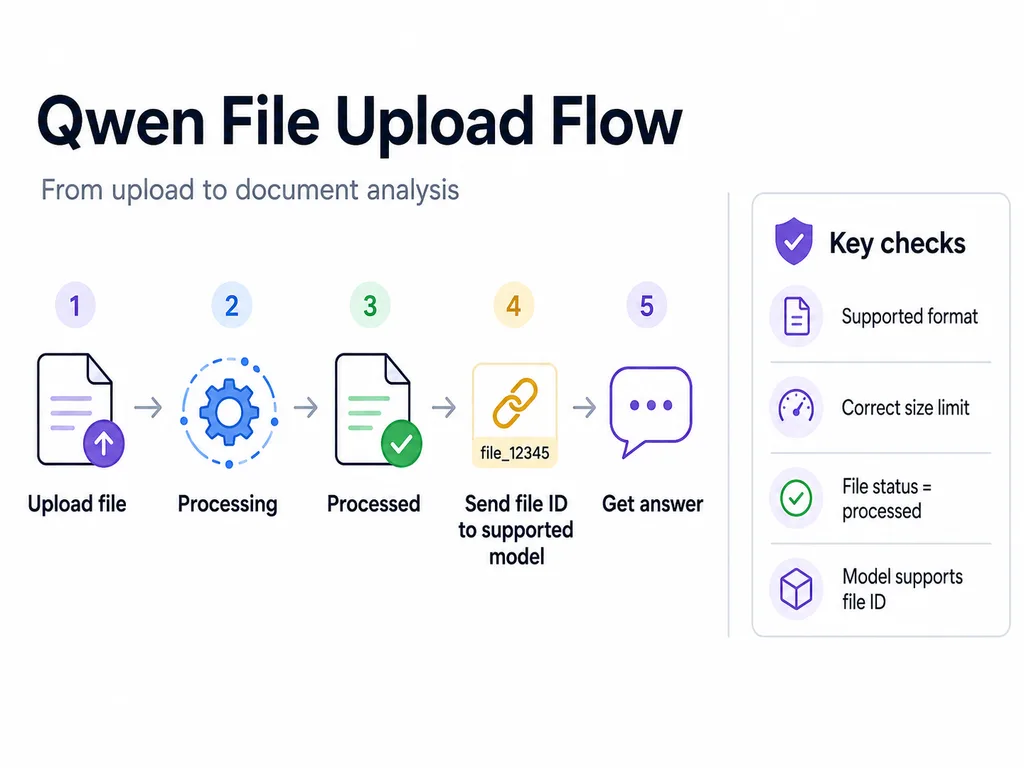
File Parsing in Progress
Uploading and parsing are separate stages.
- The file bytes are accepted.
- Model Studio creates a file record.
- The document is parsed.
- The status changes to
processed. - The supported model can use the
file-id.
Do not treat a returned file ID as proof that parsing has finished.
If the file remains in processing:
- Check the format.
- Check the size.
- Query the file using the retrieve endpoint.
- Wait before retrying.
- Re-export the document if processing never completes.
Storage Capacity and File Count Errors
The OpenAI-compatible file-extraction storage currently supports:
- Up to 10,000 files.
- Up to 100 GB total storage.
- Files remain stored until deleted.
The following messages mean that storage must be cleaned:
Upload file capacity exceed limit.
Upload file number exceed limit.
List the account’s files, identify unused file IDs, and delete them through the Files API.
File upload, storage, listing, and deletion are currently free; model input and output tokens are billed when the document is used.
File ID, Account, Region, and Workspace Errors
A file ID can fail even when the original upload succeeded.
File IDs are account-bound
The API key used to call the model must belong to the account that created the file ID. Do not upload with one Alibaba Cloud account and call the model with another.
Region and endpoint must match
Singapore and China (Beijing) use different API keys and endpoints. A file uploaded to one regional service should not be assumed to exist in another.
Workspace-specific endpoints
Current Model Studio deployments can use a Workspace ID inside the base URL. Copy the exact endpoint from the intended workspace rather than combining a file endpoint from one environment with a model endpoint from another.
Use a supported model
A valid file ID still fails when passed to a model that does not support the file-ID mechanism.
Public URL and Temporary URL Failures
When Qwen must download a file from a URL, the URL must be accessible from the model service without your browser session.
- Do not use a localhost or private-network URL.
- Do not require cookies or an interactive login.
- Confirm that a signed URL has not expired.
- Use HTTPS.
- Prefer storage in the same region as the model service.
- Confirm that redirects ultimately return the file rather than an HTML login page.
- Confirm the response Content-Type and actual file content match.
A URL that opens in your logged-in browser can still be inaccessible to Qwen.
Qwen File Upload Error Guide
| Error or status | Likely meaning | Recommended response |
|---|---|---|
400-BadRequest.TooLarge | The file exceeds the route’s size limit | Compress, split, or use the correct supported route. |
Input file format is not supported | Unsupported format or wrong internal encoding | Convert the file properly into a documented format. |
The file format is illegal and cannot be opened | Corrupted, protected, mislabeled, or unsupported file | Open and re-export an unprotected copy. |
File parsing in progress | Upload completed but parsing is unfinished | Wait and retry after checking status. |
Upload file number exceed limit | The 10,000-file storage count is full or nearly full | List and delete unused files. |
Upload file capacity exceed limit | The 100 GB file-extraction storage capacity is full | Delete unused files. |
Failed to download the input file | The URL is private, expired, unreachable, slow, or too large | Use a stable public URL or supported upload method. |
401 | Missing or invalid API key | Check the environment variable and regional key. |
403 | No permission for account, model, workspace, or resource | Verify activation and access. |
404 | Wrong endpoint, Model ID, file ID, or workspace | Verify all identifiers in the same region. |
429 | Upload QPS or account limit exceeded | Queue uploads and retry with backoff. |
500 or 503 | Temporary service or model problem | Retry a limited number of times and retain the request ID. |
The OpenAI-compatible upload interface currently has a limit of 3 upload requests per second. Query, list, and delete operations share a separate 10-QPS limit.
Use the dedicated Qwen API errors guide for the broader error catalog.
Python Upload and Diagnostic Example
This example uploads one document, waits until its status becomes processed, calls a supported document model, and optionally deletes the file afterward.
The current Qwen-Long and Qwen-Doc-Turbo documentation applies to China (Beijing). Set the exact Workspace URL and Model ID available to your account.
import os
import time
from pathlib import Path

from openai import (
    APIConnectionError,
    APIStatusError,
    APITimeoutError,
    BadRequestError,
    OpenAI,
    RateLimitError,
)

api_key = os.getenv("DASHSCOPE_API_KEY")
base_url = os.getenv("QWEN_FILE_BASE_URL")
model = os.getenv("QWEN_FILE_MODEL", "qwen-doc-turbo")
file_path = Path(os.getenv("QWEN_FILE_PATH", "document.pdf"))
delete_after_use = os.getenv("QWEN_DELETE_FILE", "false").lower() == "true"

if not api_key:
    raise RuntimeError("DASHSCOPE_API_KEY is not configured.")

if not base_url:
    raise RuntimeError(
        "QWEN_FILE_BASE_URL is not configured. "
        "Use the exact compatible-mode URL for your region and workspace."
    )

if not file_path.is_file():
    raise FileNotFoundError(f"File not found: {file_path}")

# file-extract documents are limited to 150 MB.
# Image files can have a lower limit, currently documented as 20 MB.
size_bytes = file_path.stat().st_size
document_limit = 150 * 1024 * 1024
image_limit = 20 * 1024 * 1024
image_extensions = {".bmp", ".gif", ".jpeg", ".jpg", ".png"}

applicable_limit = (
    image_limit if file_path.suffix.lower() in image_extensions
    else document_limit
)

if size_bytes > applicable_limit:
    raise ValueError(
        f"{file_path.name} is too large for this file-extract test. "
        f"Size: {size_bytes / 1024 / 1024:.2f} MB."
    )

client = OpenAI(
    api_key=api_key,
    base_url=base_url,
    timeout=120.0,
    max_retries=0,
)

file_id: str | None = None

try:
    uploaded = client.files.create(
        file=file_path,
        purpose="file-extract",
    )

    file_id = uploaded.id

    print(
        {
            "event": "uploaded",
            "file_id": file_id,
            "filename": uploaded.filename,
            "status": uploaded.status,
            "bytes": uploaded.bytes,
        }
    )

    deadline = time.monotonic() + 300
    current = uploaded

    while current.status != "processed":
        if time.monotonic() >= deadline:
            raise TimeoutError(
                f"File did not reach processed status: {file_id}"
            )

        if current.status in {"error", "failed"}:
            raise RuntimeError(
                f"File processing failed: "
                f"{getattr(current, 'status_details', None)}"
            )

        time.sleep(5)
        current = client.files.retrieve(file_id)

        print(
            {
                "event": "status",
                "file_id": file_id,
                "status": current.status,
                "status_details": current.status_details,
            }
        )

    completion = client.chat.completions.create(
        model=model,
        messages=[
            {
                "role": "system",
                "content": "You are a careful document-analysis assistant.",
            },
            {
                "role": "system",
                "content": f"fileid://{file_id}",
            },
            {
                "role": "user",
                "content": (
                    "Return the document title and five facts found "
                    "inside the uploaded file. Do not use general knowledge."
                ),
            },
        ],
        stream=False,
    )

    print(
        {
            "event": "completed",
            "request_id": completion.id,
            "model": completion.model,
            "answer": completion.choices[0].message.content,
            "finish_reason": completion.choices[0].finish_reason,
            "usage": completion.usage,
        }
    )

except BadRequestError as error:
    print(
        {
            "type": "bad_request",
            "status": error.status_code,
            "request_id": error.request_id,
            "message": str(error),
        }
    )
    raise

except RateLimitError as error:
    print(
        {
            "type": "rate_limit",
            "status": error.status_code,
            "request_id": error.request_id,
            "message": str(error),
        }
    )
    raise

except APIStatusError as error:
    print(
        {
            "type": "api_status",
            "status": error.status_code,
            "request_id": error.request_id,
            "message": str(error),
        }
    )
    raise

except (APITimeoutError, APIConnectionError) as error:
    print(
        {
            "type": "connection_or_timeout",
            "message": str(error),
        }
    )
    raise

finally:
    if delete_after_use and file_id:
        try:
            deleted = client.files.delete(file_id)
            print(
                {
                    "event": "deleted",
                    "file_id": deleted.id,
                    "deleted": deleted.deleted,
                }
            )
        except Exception as cleanup_error:
            print(
                {
                    "event": "cleanup_failed",
                    "file_id": file_id,
                    "message": str(cleanup_error),
                }
            )
If upload succeeds but the model call returns File parsing in progress, increase the wait period rather than creating a duplicate upload.
If the selected model returns an unsupported-file-reference error, confirm that the model supports the documented fileid:// mechanism.
What Not to Do
- Do not repeatedly upload the same large file. You may create duplicates or hit rate and storage limits.
- Do not assume every Qwen model can read a file ID.
- Do not mix Beijing and Singapore API keys, files, and endpoints.
- Do not use a file ID created by another account.
- Do not use a file before its status is processed.
- Do not rename an unsupported file extension without converting its content.
- Do not upload password-protected or confidential documents without authorization.
- Do not publish API keys, file IDs, signed URLs, or private documents in support posts.
- Do not store temporary URLs as permanent file records.
- Do not copy an API file-size limit into a Qwen Studio article as though it were the consumer-interface limit.
How to Report the Problem
Include enough detail to distinguish a product outage from a file or integration problem.
- Date, time, and time zone.
- Qwen Studio, mobile app, Model Studio, or third-party integration.
- Browser or application version.
- File type and approximate size.
- Whether the file is scanned, encrypted, or password-protected.
- Whether a small TXT file works.
- Whether another browser, device, or network works.
- Exact Model ID and API route.
- Purpose value:
file-extractorbatch. - HTTP status, provider error code, and request ID.
- File status and redacted file ID.
- Region and workspace.
- A minimal non-sensitive file that reproduces the issue, when permitted.
Remove API keys, signed URLs, personal information, and confidential document contents from logs and screenshots.
Frequently Asked Questions
Why is Qwen file upload not working?
The problem may be the conversation, browser, network, filename, unsupported format, corrupted file, size limit, incomplete parsing, storage quota, API key, region, or a model that does not support file IDs. Test one small plain-text file in a new conversation first.
Why did Qwen say Upload Failed?
Upload Failed is a general symptom. Check whether the file opens, simplify its filename, reduce its size, confirm the format, try another network, and inspect the exact API error when using Model Studio.
Why can Qwen see the filename but not read the file?
The file may not have parsed, the conversation or third-party integration may pass only metadata, or the filename may trigger an edge case. Rename the file, start a new conversation, and ask Qwen to quote a sentence from the document.
Why is my Qwen file stuck processing?
The upload may be complete while document parsing is still running. Wait, query the file status, and use it only after the status becomes processed. Large scanned or image-heavy documents can take longer.
What file types can Qwen upload?
The answer depends on the route. Qwen Studio publicly lists examples such as CSV, Excel, and text documents. Qwen-Long, Qwen-Doc-Turbo, OCR, batch, and multimodal APIs each publish different supported-format lists.
What is the Qwen document upload limit?
For the OpenAI-compatible file-extract route, current documentation allows documents up to 150 MB and specifies a 20 MB limit for image files. Other routes have different limits, so check the selected model and purpose.
Why do some Qwen pages mention a 1 GB upload limit?
The 1 GB value is a service-level maximum for particular native or temporary upload services. It does not override a lower 150 MB, 100 MB, 20 MB, or 10 MB limit imposed by the chosen purpose or model.
Can every Qwen API model read uploaded files?
No. The current Files API documents file-ID analysis for Qwen-Long and Qwen-Doc-Turbo, plus batch processing. A general Qwen Chat Completions model does not automatically gain file access because a file was uploaded.
What does purpose=file-extract mean?
It tells the Files API that the upload will be used for document extraction or analysis with a supported document model. Use purpose="batch" only for a valid JSONL batch task.
What does File parsing in progress mean?
The file was accepted, but Qwen has not finished extracting its content. Wait and retry after checking the file status. Do not create a new upload immediately.
How do I fix Upload file number exceed limit?
List files stored in the account and delete unnecessary entries. The current OpenAI-compatible file storage supports up to 10,000 files and 100 GB total.
Do Qwen file IDs expire?
Files uploaded through the OpenAI-compatible Files API are currently stored until deleted. Temporary OSS URLs are different and expire after 48 hours.
Can a Qwen file ID be used by another account?
No. File IDs are bound to the Alibaba Cloud account that created them. Upload and model calls must use the correct account and regional configuration.
Why does my public file URL fail?
The URL may require login, use a private network, have expired, redirect to HTML, or be too slow or large. Test it without authentication and use a stable public URL in the same region when possible.
Can Qwen read a scanned PDF?
Some Qwen document and visual routes support scanned PDFs or text-and-image parsing. Quality depends on scan resolution and layout, and parsing can take longer. Qwen3.5 OCR also has a specialized direct PDF route.
Why does Qwen reject my password-protected PDF?
A server-side parser cannot use the password session from your local PDF application. Create an authorized unprotected copy and upload that version.
Does Qwen charge for uploading and storing files?
Alibaba Cloud currently states that file upload, storage, querying, and parsing are free for the documented Files API. Model input and output tokens are charged when the file content is used in inference.
Official Sources Used
- Official Qwen Studio overview
- OpenAI-compatible Files API
- Native Model Studio file-upload API
- Qwen-Long document upload and limits
- Qwen-Doc-Turbo document processing
- Temporary file URLs for multimodal models
- Qwen image and video input methods
- Qwen OCR and direct PDF processing
- Model Studio error codes
- Community-reported Qwen Chat filename edge case
Verification status: Qwen Studio’s document-processing capability was verified from the official product overview. API formats, sizes, storage quotas, QPS limits, processing status, account binding, temporary URL rules, OCR limits, and error meanings were checked against current Alibaba Cloud Model Studio documentation. Browser, file-renaming, re-export, and conversation-isolation steps are independent troubleshooting recommendations. The emoji-filename behavior is a community-reported edge case and is not presented as a universal Qwen restriction.
Last verified: August 22, 2026.
[…] ordinary upload failures, use the separate Qwen File Upload Not Working […]
[…] For upload-specific diagnosis, use the separate Qwen file upload troubleshooting guide. […]