
If the Qwen app is not working, will not open, or closes immediately, first determine whether the problem affects the installed Qwen Studio app or the wider Qwen service. An outdated or faulty app version, corrupted local data, a login session, low storage, an operating-system compatibility issue, a network restriction, or a temporary Qwen incident can produce similar symptoms.
Quick answer: Preserve any open chats, confirm that you installed the official Qwen Studio app, and test Qwen Studio on the web. Then force-close the app, restart the device, install the latest official app and operating-system updates, and test again. On Android, clear the app cache before clearing storage. Reinstall only after confirming your account and saving important conversations.
This guide covers the official Qwen Studio applications for iPhone, iPad, Android, Windows, and macOS. It does not cover Qwen Code crashes, third-party apps that run local Qwen models, or failures inside ComfyUI, LM Studio, Ollama, or PocketPal.
Independent verification note: Try-Qwen-AI.com is an independent Qwen resource. It does not develop or operate Qwen Studio. App versions, download links, compatibility, and known issues can change, so verify the current official listing before reinstalling.
Current Official Qwen App Snapshot
| Platform | Current official route | Latest verified public information |
|---|---|---|
| Web | Qwen Studio at chat.qwen.ai | Use this as the main comparison when an installed app fails. |
| iPhone and iPad | Apple App Store, app ID 6743778442 | Version 2.10.0 was listed on August 11, 2026. |
| Android | Google Play, package ai.qwenlm.chat.android | The listing showed an update date of August 6, 2026. |
| Windows | Official Qwen desktop download | Available from Qwen’s official download page. |
| macOS | Official Qwen desktop download | Available from Qwen’s official download page. |
| Linux | No official Qwen Studio desktop download was listed | Linux wrappers found elsewhere should be treated as third-party software. |
Use the official Qwen download page rather than downloading an APK, DMG, EXE, or desktop wrapper from an unrelated website.
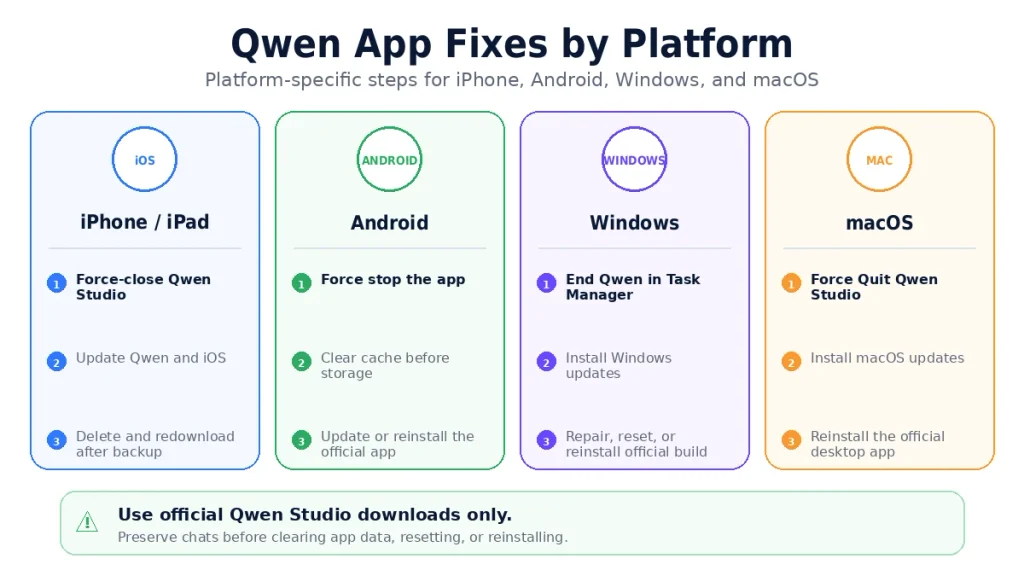
The iPhone and iPad App Store listing is separate from Qwen’s dedicated macOS desktop download. Apple may display the mobile listing on a Mac as an iPad-designed app, but that does not make it the same application as the official Qwen Studio desktop build.
Confirm You Installed the Official Qwen Studio App
Before troubleshooting, verify that the failing application is actually Qwen Studio.
| Check | Official value |
|---|---|
| Product name | Qwen Studio |
| Official developer on mobile stores | Alibaba Cloud or Alibaba Cloud (Singapore) Private Limited |
| Android package | ai.qwenlm.chat.android |
| Apple App Store ID | 6743778442 |
| Official web address | chat.qwen.ai |
| Official desktop platforms | Windows and macOS |
Apps that merely include “Qwen” in their names may be third-party multi-model clients or local-model runners. Their crashes, storage, login, privacy, and update systems are controlled by their own developers.
Do not install an unofficial APK to bypass a compatibility or rollout problem. A modified package can introduce malware, broken updates, account theft, or a different app signature.
Preserve Important Chats Before Troubleshooting
Some troubleshooting steps sign you out or remove locally stored application data. Preserve important work first.
- Open Qwen Studio on the web using the same account.
- Confirm that important chats are visible there.
- Copy important prompts, responses, code, and documents.
- Bookmark or copy direct conversation URLs.
- Save screenshots of any error message.
- Record the account and sign-in method.
- Record the current app version and operating-system version.
Clearing Android app storage, resetting a Windows app, or reinstalling can remove local settings and sign-in state. Do not treat those actions as harmless first steps.
Use the separate Qwen chat history troubleshooting guide when conversations are missing or fail to synchronize.
60-Second Qwen App Diagnosis
- Open Qwen Studio on the web. If the web version works, the account and core service are probably available.
- Force-close the installed app. Do not only minimize it.
- Restart the device.
- Check the official app store or download page for an update.
- Check for an operating-system update.
- Confirm that the device has free storage.
- Test another network. Disable a VPN temporarily.
- On Android, clear only the Qwen app cache.
- If the crash continues, preserve account information and reinstall the current official version.
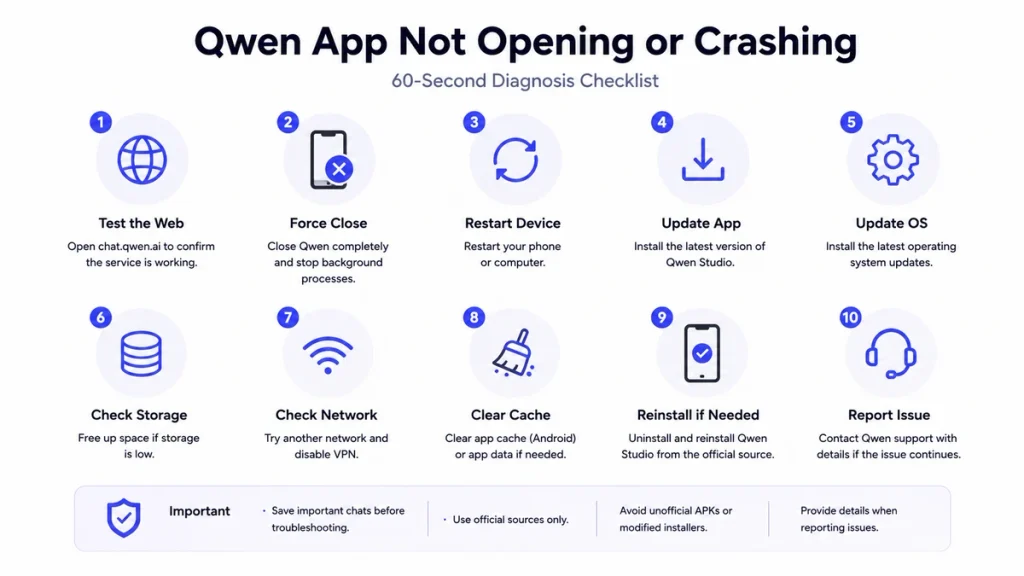
If Qwen works on the web but the installed application still closes immediately, focus on the app version, local data, device compatibility, and platform-specific fixes below.
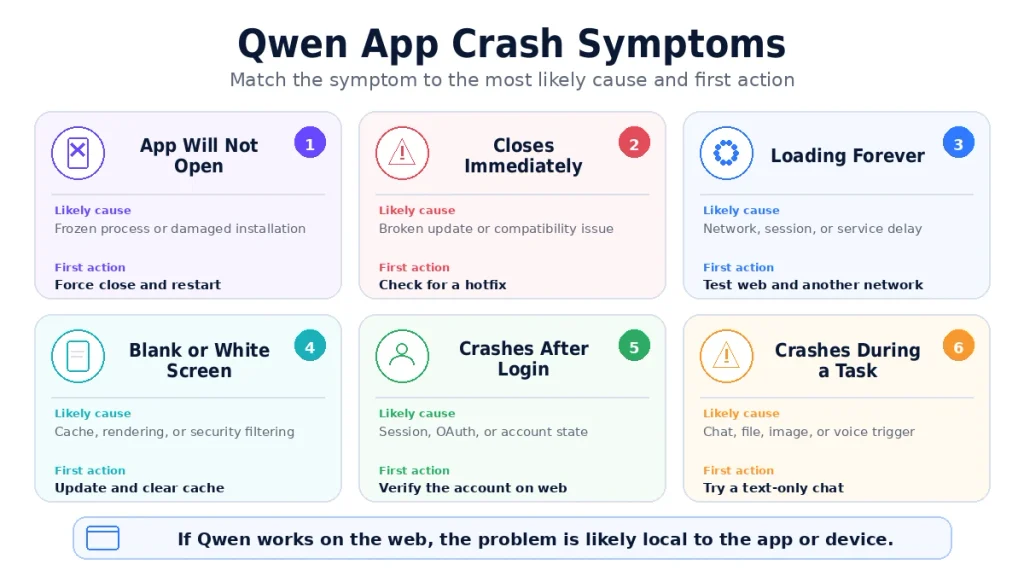
Identify Your Exact Qwen App Symptom
| Symptom | Likely scope | Best first action |
|---|---|---|
| App does not react when opened | Frozen process, installation, OS, or security software | Force-close all Qwen processes and restart the device. |
| App opens and closes immediately | Version regression, corrupted local state, compatibility, or startup component | Update the app and OS, then test after restart. |
| Crash started after an update | Version-specific bug or incomplete upgrade | Check for a newer hotfix before reinstalling. |
| Crash occurs after login | Session, authentication, account state, or network issue | Test the same account on the web and another network. |
| White or black screen | Application rendering, cached state, network, or security filtering | Restart, update, and compare the web version. |
| Loading screen never finishes | Network, service, login session, or app synchronization | Test web access and another network. |
| App crashes when opening one chat | Conversation-specific content or rendering problem | Open the chat on the web and preserve it. |
| App crashes during file or media use | Feature-specific upload, permission, memory, or processing issue | Test one short text-only chat. |
| Only the desktop app fails | Windows or macOS installation, permissions, or security software | Close background processes and reinstall from the official page. |
| Only the mobile app fails | Mobile app version, cache, device OS, storage, or permissions | Update, force-stop, restart, and clear cache where available. |
Is Qwen Down or Is Only the App Failing?
The installed app is probably the problem when:
- Qwen Studio works normally in a browser.
- The same account works on another device.
- The crash began immediately after an app update.
- Only one operating system is affected.
- The app closes before sending any request to Qwen.
- Reinstalling or clearing cache changes the behavior.
A wider Qwen issue is more likely when:
- The web version also fails.
- Several devices and networks show the same loading or service error.
- Other users begin reporting the same problem at the same time.
- The app opens but every model request fails.
- Chats, file uploads, image generation, and account synchronization fail together.
Use the separate Qwen slow, server busy, or response-stopping guide when the application opens normally but the service does not answer.
General Fix Order for Every Platform
- Preserve important chats and identify the account.
- Verify that the app came from an official source.
- Test Qwen Studio on the web.
- Force-close the app and all remaining Qwen processes.
- Restart the device.
- Update Qwen Studio.
- Update the operating system.
- Free storage and close memory-heavy applications.
- Test without VPN, proxy, or restrictive security filtering.
- Clear temporary app cache where available.
- Reinstall the official application.
- Report the issue with version and device details if it remains reproducible.
Do not begin with a factory reset, operating-system reinstall, random registry cleaner, security bypass, or unofficial app downgrade.
Qwen App Crashing After an Update
An application update can introduce a compatibility bug or leave an incomplete local upgrade.
A historical iOS incident in April 2026 caused Qwen Studio to crash when opened after an update. The developer responded in the App Store that version 2.0.3 fixed that problem. This demonstrates why checking for a newer hotfix is more useful than repeatedly reinstalling the same affected version.
- Open the official store listing and confirm the installed version.
- Check whether another update has been released.
- Read recent developer responses and version notes.
- Restart the device after installing the update.
- Test the web version while waiting for a hotfix.
- Do not install an older APK or desktop installer from an unofficial archive.
- Report the old and new version numbers when the regression continues.
Version 2.0.3 is included here as a historical example. It is not the current Qwen Studio release.
Qwen App Crashing After Login
If Qwen opens before authentication and closes immediately after sign-in, the failure may involve the saved session, account data, OAuth return, regional routing, or an app-specific authorization bug.
- Confirm that the account works on
chat.qwen.ai. - Record the sign-in method used.
- Force-close and reopen the app.
- Restart the device.
- Try another network without a VPN.
- Update the application.
- On Android, clear cache before clearing app storage.
- Reinstall after confirming that important chats are visible on the web.
- Report the exact time and whether the crash occurs before or after the authorization screen returns to Qwen.
Use the dedicated Qwen login troubleshooting guide when the app remains open but authentication itself fails.
Qwen App Stuck on Loading or a Blank Screen
An infinite loading screen is different from an instant crash. The application process remains open but cannot finish loading its interface or account data.
- Wait briefly to rule out a slow initial request.
- Test Qwen Studio in the browser.
- Force-close the app and restart the device.
- Switch between Wi-Fi and mobile data or another network.
- Disable the VPN, proxy, ad blocker, or DNS-filtering service temporarily.
- Set the device’s date and time automatically.
- Update the application and operating system.
- Clear temporary cache where the platform permits.
- Reinstall from the official source if the blank screen remains.
If the web version is also stuck or every request fails, the cause may be a service or network problem rather than the installed application.
Qwen App Opens but Crashes During a Task
When Qwen opens normally but crashes only during one action, isolate that feature before reinstalling the whole app.
| Crash trigger | Likely area | Best test |
|---|---|---|
| Opening one long chat | Conversation rendering or damaged thread state | Open another chat, then use the web version to save the affected thread. |
| Uploading a document | File size, format, app permission, memory, or upload workflow | Upload one small TXT or PDF file. |
| Generating an image | Creative mode, memory, rendering, or generation workflow | Start a new text-only conversation. |
| Uploading a video | File size, decoding, permission, or processing | Test a short lower-resolution video or use the web interface. |
| Opening camera or photos | Camera or photo-library permission | Review app permissions and test without media. |
| Starting voice mode | Microphone permission, audio device, or voice component | Grant microphone access and test ordinary text chat. |
| Receiving a long response | Rendering, memory, conversation length, or app version | Request a shorter answer in a new chat. |
Use the relevant specialist guides for file-upload failures and image-generation failures.
Fix Qwen on iPhone and iPad
- Force-close Qwen Studio. Open the App Switcher and swipe the app away.
- Reopen the app.
- Restart the iPhone or iPad.
- Open the App Store and update Qwen Studio.
- Update iOS or iPadOS.
- Check available device storage.
- Disable VPN or restrictive DNS filtering temporarily.
- Test Qwen Studio on the web in Safari.
- Delete and redownload the app only after preserving important data.
Apple’s standard troubleshooting order for an app that closes unexpectedly is to close and reopen it, restart the device, check for updates, and redownload it when necessary.
If the crash happens only after authorization, record whether it occurs before the browser returns to Qwen Studio or immediately after the app displays the account.
Fix Qwen on Android
- Open Settings → Apps → Qwen Studio.
- Tap Force stop.
- Open Qwen again.
- Restart the phone or tablet.
- Update Qwen Studio through Google Play.
- Install available Android and Google Play system updates.
- Open Storage & cache and select Clear cache.
- Check available internal storage.
- Review network, battery, and background-data restrictions.
- Test the same account at
chat.qwen.ai. - Use Clear storage only after preserving data and confirming the account.
- Uninstall and reinstall the official Google Play version if necessary.
Android menu labels differ between manufacturers. Clearing the cache removes temporary data, while clearing storage resets the app and removes its local data and sign-in state.
If Google Play says the application is incompatible with the device, do not bypass the restriction by downloading a random APK. Use Qwen Studio on the web or a supported device.
Fix Qwen Studio on Windows
- Close Qwen Studio completely. Check the system tray as well as the visible window.
- Open Task Manager. End remaining Qwen Studio processes.
- Restart Windows.
- Install Windows updates.
- Download the current Qwen Studio installer from Qwen’s official page.
- Check Windows Security or antivirus quarantine.
- Allow Qwen Studio through the firewall only when the installer is official.
- Open Settings → Apps → Installed apps. Use Repair or Reset only if Windows exposes those options for Qwen Studio.
- Uninstall Qwen Studio, restart, and reinstall the official build.
- Use the web version while diagnosing a desktop-only failure.
Windows does not offer Repair or Reset for every desktop application. Reset can remove local settings, so preserve important information before using it.
Do not disable Windows security protections permanently or run unknown PowerShell commands to force the application to open.
Fix Qwen Studio on macOS
- Quit Qwen Studio normally.
- If it is unresponsive, press Option + Command + Esc and select Force Quit.
- Restart the Mac.
- Install available macOS updates.
- Download the current macOS build from Qwen’s official download page.
- Confirm that the app is located in the Applications folder.
- Test another network and disable VPN temporarily.
- Remove and reinstall the official desktop application if it still quits unexpectedly.
If macOS warns that an installer is damaged, modified, or cannot be verified, download a fresh copy from the official Qwen page. Do not disable Gatekeeper or copy terminal commands from an untrusted forum simply to bypass the warning.
The iPhone and iPad App Store version shown on a Mac is not necessarily the dedicated Qwen Studio macOS desktop build.
Clear Cache vs Clear App Data
| Action | What it removes | When to use it |
|---|---|---|
| Force-close | No stored data | First response to freezing or a temporary crash. |
| Restart device | No app data | After force-closing and before destructive fixes. |
| Clear cache | Temporary files | Android loading, rendering, or startup problems. |
| Clear app storage or data | Local settings, cached state, and sign-in data | Only after cache, update, restart, and backup steps fail. |
| Windows Reset | Application data and settings can be reset | Only if available and after preserving important information. |
| Reinstall | The application and potentially local state | After confirming the account and web-based chat availability. |
Server-synchronized chats may reappear after sign-in, but do not assume that every guest chat, unsent prompt, local draft, or incomplete upload has been synchronized.
Storage, Memory, and OS Compatibility
An application can fail before displaying a clear “low storage” or “out of memory” warning.
- Free internal storage before updating or reinstalling.
- Close games, browsers with many tabs, video editors, and other memory-heavy applications.
- Restart the device to release temporary memory.
- Install current operating-system updates.
- Check the official store for device compatibility.
- Do not confuse the Qwen Studio cloud application with an app running a large Qwen model locally.
The official Qwen Studio app connects to managed Qwen services. It does not need to load a multi-gigabyte foundation model into the phone’s memory. A third-party local-model application has completely different RAM and hardware requirements.
VPN, Firewall, Proxy, and Network Problems
Network restrictions more commonly produce a blank screen, endless loading, login loop, or missing content than an instant operating-system crash. However, some applications may close when an authorization or embedded page fails unexpectedly.
- Switch from Wi-Fi to mobile data or another trusted network.
- Disable VPN temporarily.
- Disable a custom DNS or ad-blocking profile temporarily.
- Check whether a corporate firewall blocks Qwen domains.
- Set the device clock and time zone automatically.
- Test
chat.qwen.aiin a normal browser. - Do not add firewall exceptions for an app downloaded from an unofficial source.
A VPN is a diagnostic comparison, not a guaranteed fix. It can increase latency, change regional routing, or trigger additional account-security checks.
Reinstall Qwen Studio Safely
Reinstalling is appropriate after update, restart, cache, storage, network, and compatibility checks have failed.
- Confirm the exact account and sign-in method.
- Verify that important chats are visible on the web.
- Copy any unsynced or guest-session content.
- Record the installed app version.
- Uninstall Qwen Studio.
- Restart the device.
- Download the current official version.
- Sign in using the original method.
- Test a short text-only chat before enabling files, voice, camera, or image generation.
- If it crashes again, report the clean-install result and exact reproduction steps.
If a clean reinstall crashes at the same point, repeated reinstallations are unlikely to add useful information. The problem may require a Qwen app update or account-side investigation.
Qwen Studio vs Qwen Code and Local Qwen Apps
| Product | What it is | Correct troubleshooting area |
|---|---|---|
| Qwen Studio | Official consumer assistant for web, mobile, Windows, and macOS | This article |
| Qwen Code | Developer coding agent for terminal, desktop, IDE, and automation workflows | Qwen Code troubleshooting |
| Ollama, LM Studio, PocketPal, or local clients | Third-party applications running downloadable Qwen models | Local Qwen troubleshooting |
| ComfyUI or image-generation runtimes | Local creative-model workflows | Runtime, dependency, GPU, and model-workflow troubleshooting |
| Third-party multi-model AI app | Another developer’s client that can call Qwen | That application’s support and privacy documentation |
An error caused by loading a Qwen GGUF model into 3 GB of RAM is not a crash of the official Qwen Studio application. Conversely, clearing Qwen Studio’s cache will not fix a Qwen Code Node.js heap failure.
What Not to Do
- Do not repeatedly reinstall the same broken version.
- Do not clear app storage before preserving chats and account details.
- Do not download unofficial APK, EXE, or DMG files.
- Do not disable antivirus, firewall, Gatekeeper, or Windows security permanently.
- Do not use registry cleaners or random terminal commands.
- Do not assume that every app containing “Qwen” is official.
- Do not publish private chat content, account email, session tokens, or crash files publicly.
- Do not factory-reset the device for one app crash before testing the web version.
- Do not confuse a server-busy message with an operating-system application crash.
- Do not assume reinstalling will preserve an unsaved guest session.
How to Report a Qwen App Crash
Use Qwen’s in-product feedback option when available. In App Store developer responses, Qwen has also directed users with technical app problems to [email protected].
Include:
- Date, time, and time zone.
- Device manufacturer and exact model.
- Operating-system version.
- Qwen Studio app version.
- Official download source used.
- Account identifier, sent privately.
- Whether the web version works.
- Whether the crash happens before or after login.
- The exact screen or action that triggers the crash.
- Whether the issue began after an app or OS update.
- Whether restart, cache clearing, and reinstall were tested.
- A screenshot or screen recording when possible.
- Crash report or diagnostic details only when requested and after reviewing them for sensitive data.
Use a minimal reproduction such as:
1. Open Qwen Studio.
2. Tap Sign in with Google.
3. Complete authorization.
4. Qwen Studio reopens and closes within two seconds.
5. The web version works with the same account.
Do not attach confidential prompts, private documents, passwords, API keys, authentication tokens, or unredacted personal information.
Frequently Asked Questions
Why is the Qwen app not working?
The cause may be an outdated or faulty app version, damaged local cache, low storage, an unsupported operating-system version, a login session, network filtering, or a wider Qwen service issue. Test the web version first, then update, restart, and use the platform-specific steps above.
Why does Qwen crash when I open it?
An instant startup crash commonly points to a version regression, incomplete update, corrupted local state, device compatibility problem, or blocked startup component. Force-close the app, restart, update Qwen and the operating system, and reinstall the official version when necessary.
Why does the Qwen app close immediately?
The application is terminating during startup. Test whether Qwen works on the web, check for a newly released hotfix, free storage, restart the device, and perform a clean official reinstall after preserving account information.
Is Qwen down or is it only my app?
If chat.qwen.ai works on the same account and network, the installed app is the more likely problem. If web, mobile, and desktop all fail, investigate a service, account, or network issue.
Why did Qwen start crashing after an update?
The update may contain a platform-specific bug or an incomplete upgrade may have damaged local state. Check the app store for a newer hotfix. A historical iOS crash after an earlier update was fixed by Qwen in version 2.0.3.
Why does Qwen crash after I sign in?
The problem may involve the saved session, OAuth return, account state, or regional network route. Confirm the account on the web, test another network, update the app, and report whether the crash happens before or after authorization returns to Qwen.
Why is Qwen showing a white or blank screen?
A blank screen can result from a failed interface load, damaged cache, session problem, VPN or firewall filtering, or an outdated app. Restart, update, test another network, and compare the web version.
How do I clear Qwen cache on Android?
Open Android Settings, select Apps, choose Qwen Studio, open Storage & cache, and tap Clear cache. Menu wording differs between device manufacturers. Do not choose Clear storage first.
Will clearing Qwen app data delete my chats?
Clearing app data removes local settings and sign-in state. Server-synchronized chats may return after signing in, but guest chats, drafts, or unsynchronized data may not. Confirm the account and preserve important conversations first.
Why does Qwen work on the web but not in the app?
This usually indicates an app-version, cache, installation, device-compatibility, permission, or platform-specific problem rather than a complete Qwen outage.
Should I reinstall Qwen Studio?
Reinstall after force-closing, restarting, updating, checking storage, testing the network, and clearing cache where available. Preserve important chats and use the official Qwen download source.
How do I repair Qwen Studio on Windows?
Close all Qwen processes, restart Windows, update the operating system, and check Settings → Apps → Installed apps. Use Repair or Reset only when Windows provides the option. Otherwise reinstall the official desktop build.
How do I force quit Qwen Studio on Mac?
Press Option + Command + Esc, select Qwen Studio, and choose Force Quit. Then restart the application or the Mac and check for updates.
Is there an official Qwen Studio app for Linux?
The official Qwen download page currently lists Windows and macOS for desktop, not Linux. Linux wrappers found on other sites are third-party applications and should be evaluated separately.
Is Qwen Studio the same as Qwen Code?
No. Qwen Studio is the general consumer assistant. Qwen Code is a developer coding agent with separate installation, sessions, authentication, updates, and troubleshooting.
How do I contact Qwen about an app crash?
Use the in-product feedback option or the technical support email published by the developer in App Store responses: [email protected]. Include the device, OS, app version, time, reproduction steps, and whether the web version works.
Official Sources and Verification
- Official Qwen Studio download page
- Official Qwen Studio overview
- Official Qwen Studio Google Play listing
- Official Qwen Studio App Store listing
- Apple guidance for iPhone or iPad apps that close or will not open
- Apple guidance for Mac apps that quit or will not open
- Google guidance for Android apps that are not working
- Microsoft guidance for repairing Windows applications
Verification status: Official app availability, mobile identifiers, current public update dates, version history, developer identity, and support details were checked against Qwen, Google Play, and Apple App Store pages. The earlier iOS crash and version 2.0.3 fix were verified from official developer responses on the App Store. Platform troubleshooting steps align with current Apple, Google, and Microsoft support guidance. Qwen-specific diagnostic ordering and data-preservation recommendations are independent editorial analysis.
Last verified: August 22, 2026.